If you’re digitizing old slides and negatives on a Mac, the right scanner can save time and preserve detail. The best models balance image quality, software compatibility, and an easy workflow.
Below, we’ve narrowed the field to 10 standout options for different needs, from high-resolution archival scanning to simple stand-alone devices.
Best 10 Slide Scanners for Mac Picks for 2026
High-Resolution Archive Pick
Plustek OpticFilm 8200i SE 35mm Scanner

- 7200 dpi scan resolution
- Infrared dust and scratch removal
- Mac support via downloadable driver
Best For: 35mm slide and negative archiving on Mac
Easy Standalone Option
HPFS500 Touchscreen Film & Slide Scanner
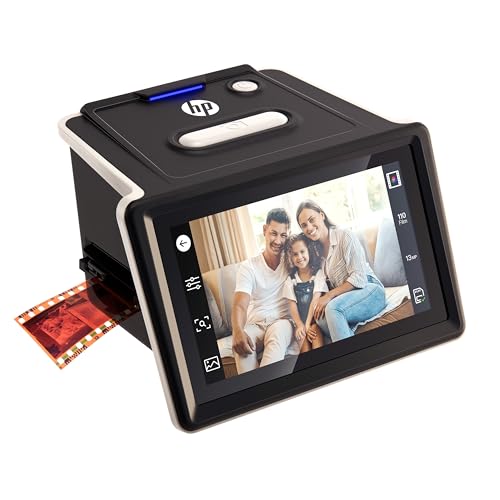
- 5-inch touchscreen for preview and edits
- 13MP sensor with 22MP interpolation
- USB-C powered with SD card saving
Best For: Simple, standalone scanning on Mac
Versatile Family Archive Pick
Magnasonic FS71 24MP All-in-One Film Scanner

- Scans film, slides, and Super 8
- 24MP output with 5-inch LCD
- No computer needed for basic adjustments
Best For: Mixed-format home archiving
Fast Easy-Use Pick
KODAK Slide N Scan Max Digital Film Scanner

- Supports 135mm, 110mm, and 126mm formats
- Direct SD/SDHC saving up to 32GB
- One-touch editing and smooth tray feed
Best For: Quick digitizing of common slides and negatives
Pro-Grade 35mm Digitizing

- 7200 DPI with 48-bit output
- Supports 35mm slides and negatives
- Mac driver support through macOS 13.x
Best For: High-resolution 35mm slide and negative scanning on Mac
Easy Desk Scanner
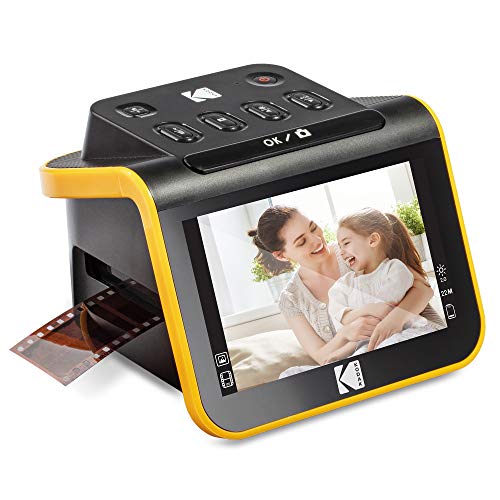
- 22MP scans with 5-inch LCD
- Handles 135, 110, 126 and 50mm media
- Saves directly to SD card
Best For: Simple, self-contained family photo digitizing
Batch Scan Specialist

- Batch scans four slides or six frames
- 7200 x 7200 DPI for 35mm media
- 5-element lens with infrared support
Best For: Efficient batch scanning of 35mm slides and negatives
Easy On-Device Scanning

- 7-inch touch screen with preview and editing
- Scans 135, 126, and 110 film formats
- USB and HDMI output for flexible use
Best For: Users who want a self-contained slide scanner with on-device preview and basic editing.
Budget Standalone Converter
DIGITNOW! 135 Film Negative Scanner

- Standalone scanning with JPG saves to SD card
- Adjustable rapid feeder for easier batch work
- Compatible with Mac OS per supplied notes
Best For: People who want a simple, compact film and slide scanner with Mac compatibility.
Fast One-at-a-Time Scanning
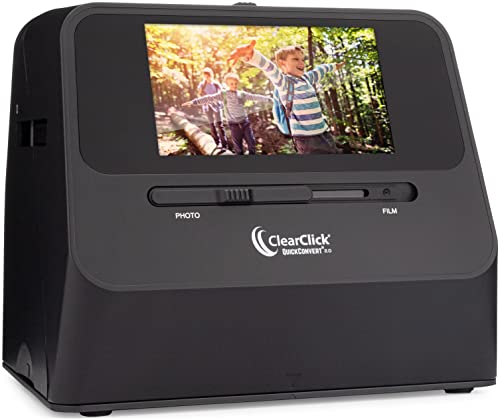
- Scans in about 2-3 seconds per image
- Works without a computer or drivers
- Rechargeable battery and 5-inch preview screen
Best For: Users who want quick, no-computer scanning of slides, negatives, and small photos.
High-Resolution Archive Pick – Plustek OpticFilm 8200i SE 35mm Scanner
If you want slide scanners for mac that prioritize detail and cleanup, the Plustek OpticFilm 8200i SE is built for serious 35mm work. It scans negatives and mounted slides at 7200 dpi with 48-bit output, and its integrated infrared channel helps detect dust and scratches before you spend time retouching.
Best For: Mac users digitizing 35mm slides and negatives who want high resolution and built-in defect removal.
Pros:
- 7200 dpi scanning with 48-bit input and 24/48-bit output.
- Infrared dust and scratch removal reduces manual cleanup.
- Enhanced Multi-Exposure function can improve image quality.
- Mac support through Plustek driver download for OS 10.7 to 14.x.
Cons:
- Focused on 35mm film and mounted slides, not larger formats.
- Requires driver download from Plustek’s website for Mac use.
For buyers who value scan quality over convenience, this model is a strong archival choice. It has the resolution and defect-handling tools to make old slides more usable, especially if you plan to work carefully on a Mac.
Easy Standalone Option – HPFS500 Touchscreen Film & Slide Scanner
The HPFS500 is a practical choice if you want slide scanners for mac with a simple, computer-light workflow. It uses a 5-inch touch screen, a 13MP CMOS sensor, and quick-load trays for multiple film formats, so you can preview, edit, and save scans directly on the unit.
Best For: Mac users who want an easy standalone scanner for mixed slide and film formats.
Pros:
- 5-inch all-angle LCD touch screen for on-device preview and editing.
- 13MP CMOS sensor with 22MP interpolation.
- Supports 135, 126, and 110 film strips and positive slides.
- USB-C powered and can save directly to an SD card.
Cons:
- Minimum Mac requirement is macOS 10.15 or later.
- Lower native resolution than dedicated high-end film scanners.
This is a good fit if you care more about convenience than maximum resolution. The standalone design keeps the process straightforward while still giving Mac users a modern connection and direct-to-card output.
Versatile Family Archive Pick – Magnasonic FS71 24MP All-in-One Film Scanner
For buyers comparing slide scanners for mac that can handle several old formats, the Magnasonic FS71 offers a practical all-in-one setup. It converts 35mm, 110, 126, and Super 8 film plus 135/126/110 slides, and its 5-inch LCD makes it easy to view and adjust scans without relying on editing software.
Best For: Mac users who want a versatile scanner for mixed slide and film collections.
Pros:
- Converts multiple film and slide formats, including Super 8.
- 24MP output with a 5-inch LCD display.
- No computer needed for brightness, RGB, flip, and mirror adjustments.
- Saves directly to SD cards and supports HDMI viewing.
Cons:
- Minimum system requirement lists Windows 7, not macOS.
- SD card is not included.
If your priority is format flexibility and easy stand-alone operation, this model covers a lot of ground. It is especially useful when you want to scan, correct, and save old photos or slides quickly without a complicated setup.
Fast Easy-Use Pick – KODAK Slide N Scan Max Digital Film Scanner
If you want slide scanners for mac that keep the workflow fast and simple, the KODAK Slide N Scan Max is designed for streamlined digitizing. It supports 135mm, 110mm, and 126mm film, saves directly to SD/SDHC cards, and uses a smooth-moving tray so you do not have to constantly reposition film.
Best For: Mac users who want quick, easy scanning of common slide and negative formats.
Pros:
- Supports 135mm, 110mm, and 126mm slides and negatives.
- Direct SD/SDHC saving keeps the workflow computer-free.
- One-touch editing simplifies resizing and image adjustments.
- 13MP CMOS sensor with 22MP interpolation and up to 4208×3120 output.
Cons:
- Minimum system requirements list Windows 7 rather than macOS.
- Direct card support is limited to SD/SDHC up to 32GB.
This is a strong pick when convenience matters more than advanced controls. It handles common formats well and keeps the process moving, which makes it appealing for quick digitization projects at home.
Pro-Grade 35mm Digitizing – Plustek OpticFilm 8100
If you want slide scanners for mac that prioritize image quality over convenience, the Plustek OpticFilm 8100 is built for serious 35mm film and slide digitizing. Its 7200 DPI, 48-bit output, and CCD sensor make it a strong choice when preserving detail and tonal range matters most.
Best For: Mac users who want high-resolution 35mm slide and negative scans for archival work or large prints.
Pros:
- 7200 DPI resolution with 48-bit output for detailed scans
- Supports 35mm negatives and slides with maximum shadow and highlight detail capture
- Includes SilverFast SE Plus software bundle for scanning and image processing
- Mac support available via downloadable driver for macOS 10.8.x through 13.x
Cons:
- Designed specifically for 35mm media, so it is not a universal film scanner
- USB workflow is more hands-on than all-in-one tray-style scanners
- Requires driver download from Plustek for Mac setup
Overall, this model makes the most sense if scan quality is your top priority and you are comfortable with a more dedicated, desktop-style film workflow. It is less about speed and more about getting the most out of old slides and negatives.
Easy Desk Scanner – Kodak Slide N Scan
Among slide scanners for mac, the Kodak Slide N Scan is a practical pick if you want a simple, standalone way to convert old photos without a complicated setup. It scans 135, 110, and 126 negatives plus 50mm slides, and the built-in 5-inch LCD makes previewing and basic editing straightforward.
Best For: Anyone who wants a simple, self-contained scanner for viewing and converting family slides and negatives.
Pros:
- 22MP scans with a built-in 5-inch LCD for previewing and editing
- Supports 135, 110, 126 negatives and 50mm slides
- Includes film trays, slide holder, cleaning brush, USB and HDMI cables
- Saves files directly to SD card and connects to Type-C USB computers
Cons:
- SD or SDHC card is not included
- Image depth is 24-bit, which is below pro-level film scanners
- Not aimed at the highest-end archival workflow
This is the easiest option in the group if you want a fast, user-friendly way to digitize mixed film formats. It trades advanced scanning depth for convenience and a simple all-in-one design.
Batch Scan Specialist – Plustek OpticFilm 135i
If you are comparing slide scanners for mac and want a model focused on productivity, the Plustek OpticFilm 135i stands out for batch scanning 35mm slides and negatives. It uses a 5-element lens system, infrared support for dust and scratch detection, and can scan multiple frames in one go.
Best For: Mac users who need efficient batch scanning for 35mm slides and negatives.
Pros:
- Batch scans four slides or six film frames at once with included holders
- 7200 x 7200 DPI output for 35mm negatives and mounted slides
- 5-element lens and infrared support help improve edge stability and dust/scratch handling
- Supports panoramic and half-frame 35mm film types with optional holder
Cons:
- Designed for 35mm media rather than a wide range of film formats
- Mac compatibility is not explicitly listed in the supplied notes
- Larger and heavier than compact tabletop scanners
This scanner is best when speed and consistency matter more than a tiny footprint. For users building a digitization workflow around 35mm archives, the batch-scan design is the key advantage.
Easy On-Device Scanning – HP Film & Slide Scanner
If you want a slide scanner for Mac-adjacent workflow that keeps the process simple, this HP FilmScan focuses on standalone digitizing with a built-in 7-inch touch display. It scans 135, 126, and 110 formats, lets you preview and edit on the device, and then transfers files through USB or displays them over HDMI.
Best For: Users who want a self-contained slide scanner with on-device preview and basic editing.
Pros:
- 7-inch color LCD touch screen for previewing and editing without extra software
- 13MP CMOS sensor designed for color and black-and-white negatives and slides
- Quick-feed loading tray and 50mm adapter support mixed slide collections
- USB transfer and HDMI output add flexible viewing and file access options
Cons:
- Built around 135, 126, and 110 formats rather than larger film types
- Resolution is listed as 1200 dpi, which may not suit users seeking higher-end scanning specs
- On-device workflow may feel limiting if you prefer computer-based editing
This is a practical choice if you value convenience and quick conversion more than advanced software control. The gallery mode and editing tools make it especially easy to scan, review, and showcase old slides in one device.
Budget Standalone Converter – DIGITNOW! 135 Film Negative Scanner
For buyers looking at slide scanners for Mac use, this DIGITNOW! unit stands out as a standalone converter that saves JPG files directly to an SD card or computer. It supports 35mm film and slides, includes a rapid feeder, and uses a built-in LCD so you can make adjustments without needing extra scanning software.
Best For: People who want a simple, compact film and slide scanner with Mac compatibility.
Pros:
- Standalone operation with no required computer or software for basic scanning
- Saves digitized images as JPG files to SD card or via USB
- Adjustable rapid slide feeder speeds up scanning sessions
- Compatible with Mac OS according to the supplied notes
Cons:
- Uses a small 2.4-inch TFT LCD, which limits preview space
- Designed for 35mm slides and film, so format support is narrower than some rivals
- SD card support is limited to 32GB SDHC
This model makes sense if you want a low-friction way to convert slides and negatives without building a computer-based workflow. Its compact footprint and standalone JPG capture make it a straightforward option for everyday digitizing.
Fast One-at-a-Time Scanning – ClearClick QuickConvert 2.0
If you need slide scanners for Mac-friendly file handling, the ClearClick QuickConvert 2.0 is built for fast, standalone conversion to JPEG on an SD card. It handles 35mm slides, 110 and 126 negatives, and 4×6 photos without requiring a computer or drivers, making it a practical pick for simple home archiving.
Best For: Users who want quick, no-computer scanning of slides, negatives, and small photos.
Pros:
- Scans in 2-3 seconds per image for fast digitizing
- No computer or drivers required for operation
- Built-in rechargeable battery supports cord-free scanning
- 5-inch preview LCD helps check scans on the device
Cons:
- Scans one item at a time and does not include an autofeeder
- Does not support 5×7 photos
- Best suited to smaller media sizes rather than larger prints
This scanner is a strong fit when speed and simplicity matter more than bulk automation. It keeps the process portable and easy, while still offering enough preview and file-saving convenience for casual digitizing projects.
How We Picked the Best Slide Scanners for Mac
We focused on Slide Scanners for Mac that offer a practical mix of image quality, macOS compatibility, ease of use, and value. Priority went to scanners with strong resolution specs, dependable color handling, and workflows that make it easier to move scans into your editing or archiving setup.
We also considered whether a model works as a computer-connected scanner or a stand-alone unit, since that affects speed, software dependence, and overall convenience.
Quick Comparison
For the best detail and archival flexibility, higher-end film scanners with 7200 dpi output are the strongest choice. For faster, simpler home use, all-in-one scanners with built-in displays are more convenient because they let you preview and save without relying on a computer. If you’re scanning large batches, automatic feed and batch conversion features can make a major difference.
Key Buying Factors for Slide Scanners for Mac
Resolution and Output Quality
Higher optical resolution matters if you plan to enlarge, crop, or restore old slides. Look for real detail capture, not just inflated marketing numbers. 48-bit color depth can also help preserve tonal range for editing later.
Mac Compatibility
Not every scanner is equally friendly with macOS. Check whether the scanner supports current Mac systems, offers native software, or works well with third-party editing tools. This is especially important for older devices and bundled applications.
Scanning Workflow
Some Slide Scanners for Mac connect directly to the computer, while others save to SD cards or operate independently through a screen. If speed matters, a stand-alone model can simplify the process. If image quality is the priority, computer-connected models often give you more control.
Media Support
Make sure the scanner handles the format you actually own. Many models support 35mm slides and negatives, while others also accept 110, 126, or even Super 8 film. Wider format support is useful if you’re digitizing a mixed archive.
Batch Capacity and Ease of Use
For large collections, automatic loading or batch conversion can save a lot of time. If you only scan occasionally, a simpler model with a display and straightforward controls may be the better fit.
Who Should Buy Which Slide Scanners for Mac?
If you want the best possible detail for restoration or long-term archiving, choose a high-resolution dedicated film scanner. If you want a faster, less technical setup, a stand-alone scanner with a built-in screen is ideal. If your archive includes multiple film formats, pick a model with broad media compatibility. And if you’re working through boxes of slides, prioritize batch scanning and automation over extra features you may not use.
For most buyers, the best choice is the one that matches both your collection size and your preferred workflow. That way, scanning stays manageable long enough to finish the job.