The best docking stations turn a laptop into a more capable desktop by adding monitor outputs, faster connectivity, charging, and convenient access to peripherals through one cable.
We selected 10 docking stations for different setups, including compact USB-C hubs, business-ready Thunderbolt 4 docks, and multi-display models with up to 100W or more of power delivery.
Best 10 Docking Stations Picks for 2026
Best Compact Dual-Monitor Pick

- Dual HDMI with up to 4K output
- Ethernet, USB, SD, and microSD ports
- Up to 85W pass-through charging
Best For: Compact dual-monitor laptop setups
Best Premium Thunderbolt Dock
Dell Pro Thunderbolt 4 Smart Dock

- Supports up to four 4K displays
- Up to 130W Dell charging
- 2.5GbE and remote Wi-Fi management
Best For: Enterprise multi-monitor workstations
Best High-Power USB-C Dock

- 14-in-1 expansion with dual HDMI
- 160W total output for multiple devices
- Up to 10Gbps data transfer
Best For: High-connectivity home and office desks
Best Triple-Display Dock

- Supports up to three HDMI displays
- DisplayLink plus native USB-C video
- 100W charging and six USB 3.0 ports
Best For: Three-screen hybrid-work workstations
Best Flexible Pick
Anker Nano 13-in-1 Detachable Dock

- Detachable hub works at a desk or on the go
- Supports up to three monitors
- 100W charging and extensive connectivity
Best For: Hybrid workers and multi-monitor home offices
Best for Business Deployment
Plugable 13-in-1 Triple Monitor Dock
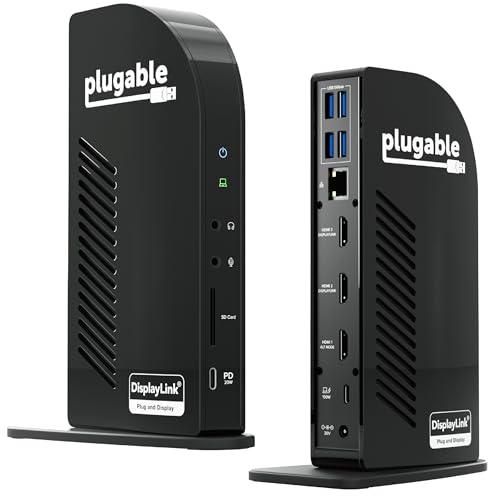
- Supports three extended HDMI displays
- Provides 100W laptop and 20W accessory charging
- Includes enterprise compliance and lifetime support
Best For: Office, education, and managed IT deployments
Best for Dell Workplaces
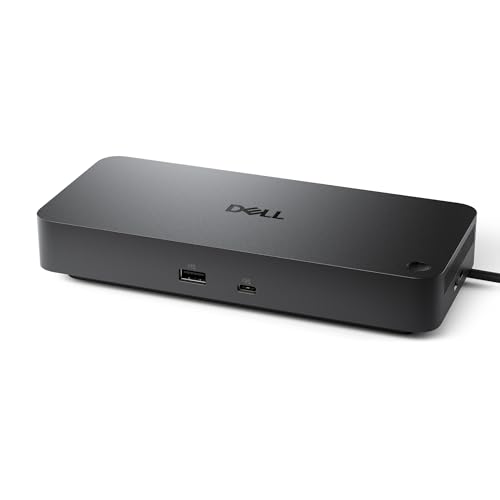
- Supports up to four high-resolution displays
- Delivers up to 100W of power
- Includes management features and a three-year warranty
Best For: Dell offices and quad-display professional workstations
Best for Broad Compatibility
Plugable Dual HDMI Universal Dock

- Dual HDMI for two HD monitors
- Six USB ports plus Gigabit Ethernet
- Two-year coverage and lifetime support
Best For: Productivity-focused Windows, Mac, and Chromebook workstations
Best for Maximum Connectivity
MOKiN 14-in-1 Triple-Display Dock

- Two HDMI and two DisplayPort outputs
- USB, Ethernet, SD, and microSD expansion
- Up to 100W USB-C Power Delivery
Best For: Multi-monitor workstations and accessory-heavy laptop setups
Best for Dual 4K Displays

- Dual HDMI output up to 4K at 60Hz
- Up to 90W laptop charging
- USB 5Gbps and SD/microSD readers
Best For: USB-C laptops needing high-resolution dual-monitor output
Best Compact Dual-Monitor Pick – Anker 8-in-1 USB-C Dock
This compact Anker docking station adds essential connectivity through one USB-C port, including dual HDMI, Ethernet, USB data ports, and SD/microSD readers. It is a practical choice for compatible Windows or ChromeOS laptops that need a simple dual-monitor desk setup.
Best For: USB-C laptop users who want dual HDMI displays, card readers, and up to 85W pass-through charging in a small hub.
Pros:
- Supports one 4K display at 60Hz or two displays at up to 4K at 30Hz.
- Includes Ethernet, two USB-A data ports, HDMI, SD, and microSD connectivity.
- Supports USB-C, USB4, and Thunderbolt connections with up to 85W pass-through charging.
Cons:
- For macOS, both external displays show identical content.
- Not compatible with Linux.
- 100W wall charger and USB-C cable are required for charging and are not included.
Choose this model when portability and everyday expansion matter more than maximum monitor bandwidth. Confirm that your laptop supports DP Alt Mode and Power Delivery before buying.
Best Premium Thunderbolt Dock – Dell Pro Thunderbolt 4 Smart Dock
This Dell docking station is built for demanding desk setups, combining Thunderbolt 4, four-display support, 2.5GbE networking, Wi-Fi management, and high-output USB-C charging. Its business-focused security and management features make it especially suited to managed work environments.
Best For: Professional users and IT teams running multi-monitor workstations with Dell or other compatible USB-C and Thunderbolt 4 laptops.
Pros:
- Supports up to four 4K monitors through HDMI 2.1, DisplayPort 1.4, USB-C, and Thunderbolt 4.
- Delivers up to 130W to Dell systems and up to 96W to other devices.
- Includes 2.5GbE, Wi-Fi management, WPA3, PXE boot, MAC filtering, and DMA protection.
- Uses 65% recycled plastic and fully recycled packaging.
Cons:
- Its business-grade feature set may be more than a basic home setup needs.
- Full display and charging capabilities depend on the connected laptop and monitor hardware.
The SD25TB4 stands out among docking stations for enterprise connectivity and remote administration. It is a strong fit when security, fleet management, and multiple 4K displays are priorities.
Best High-Power USB-C Dock – Anker Prime 14-in-1 Dock
The Anker Prime is a feature-rich docking station for users who need many connections and substantial charging capacity. It combines 14-in-1 expansion, dual HDMI, 10Gbps data ports, audio, Ethernet, and up to 160W of total output.
Best For: Users managing several peripherals and charging multiple devices from a Windows or ChromeOS laptop dock.
Pros:
- Offers 14-in-1 connectivity with dual HDMI, Ethernet, audio, and multiple USB ports.
- Provides up to 160W total output, with USB-C ports supporting up to 100W each.
- Supports data speeds up to 10Gbps and dual displays up to 2K at 60Hz with DP 1.4 laptops.
Cons:
- Dual-display output is limited to 1080p at 60Hz with DP 1.2 laptops.
- For macOS, both external monitors display identical content.
- Not compatible with Linux and does not support 5120×1440 monitors.
This Anker dock is appealing when port count and charging flexibility outweigh the need for higher-resolution dual displays. Check your laptop’s DP version and operating system for the expected output.
Best Triple-Display Dock – Plugable USB-C 12-in-1 Dock
This Plugable docking station is designed for multi-monitor productivity, supporting up to three HDMI displays alongside wired networking, six USB 3.0 peripherals, audio, and 100W USB-C Power Delivery. DisplayLink support helps it extend display capability on compatible Windows, macOS, and ChromeOS systems.
Best For: Hybrid teams and professionals who need three external HDMI displays from a compatible laptop, including newer Apple Silicon MacBooks.
Pros:
- Supports up to three extended HDMI displays: one 4K at 30Hz and two 1080p at 60Hz.
- Combines DisplayLink graphics with native USB-C video output for broader multi-display support.
- Includes Gigabit Ethernet, six USB 3.0 ports, audio, and 100W Power Delivery.
- Offers compatibility across Windows, macOS, and ChromeOS, plus lifetime technical support.
Cons:
- macOS requires driver installation for the stated multi-display functionality.
- Not compatible with Linux, and HDCP is not supported.
- Display resolutions and refresh rates vary by connection mode and host system.
For a three-screen workstation, this Plugable model offers broader display support than many basic docking stations. Verify operating-system requirements and DisplayLink driver needs before deployment.
Best Flexible Pick – Anker Nano 13-in-1 Detachable Dock
The Anker Nano is one of the more versatile docking stations for users who need a permanent desktop setup but also travel with a USB-C hub. Its detachable 6-in-1 section, triple-display support, broad port selection, and included 140W adapter make it well suited to demanding home-office workflows.
Best For: Professionals who want one dock for desk use, travel, multiple monitors, and high-speed peripheral connectivity.
Pros:
- Detachable 6-in-1 hub supports both desktop and mobile use.
- Supports up to three displays, with up to 4K at 60Hz for a single display.
- Includes Gigabit Ethernet, SD/TF card slots, audio, USB ports, and 100W laptop charging.
- Includes a 140W power adapter, 3-foot USB-C cable, and 18-month warranty.
Cons:
- macOS mirrors multiple external displays rather than providing independent extended desktops.
- Requires a laptop connection for the dock and its ports to activate.
Choose this model if flexibility is a priority. It combines a full workstation dock with a removable travel hub, though Mac users should confirm that the display behavior meets their needs.
Best for Business Deployment – Plugable 13-in-1 Triple Monitor Dock
The Plugable 13-in-1 is a practical choice among docking stations for offices, classrooms, and managed deployments. It provides three HDMI outputs, 100W laptop charging, 20W accessory charging, and broad Windows, macOS, and ChromeOS compatibility.
Best For: Business and education environments that need standardized triple-monitor workstations and long-term support.
Pros:
- Supports up to three extended HDMI displays through DisplayLink.
- Delivers up to 100W to a laptop and 20W to phones or accessories.
- Includes four USB-A ports, Ethernet, SD card reading, and audio connectivity.
- TAA, NDAA, and Section 889 compliant, with lifetime support.
Cons:
- macOS requires DisplayLink Manager installation for multiple displays.
- HDMI 2 and HDMI 3 are limited to 1920×1200 at 60Hz, while HDMI 1 reaches 4K at 30Hz.
- Does not support HDCP-protected playback such as Netflix or Hulu.
This dock stands out for organizations that value compatibility, deployment compliance, and support. Its DisplayLink setup adds a software step, but it enables multi-monitor expansion on Macs that would otherwise be limited.
Best for Dell Workplaces – Dell Pro WD25 USB-C Dock
The Dell Pro WD25 is a business-focused option among docking stations, designed to connect modern Dell and non-Dell systems to a more capable desktop setup. It offers up to 100W of power delivery, native support for as many as four high-resolution displays, and features aimed at easier IT management.
Best For: Dell-centered offices and professional users who want a manageable dock with quad-display support.
Pros:
- Supports up to four high-resolution displays natively.
- Provides up to 100W of power for compatible Dell and non-Dell PCs.
- Ambidextrous USB-C cable routing and a reinforced USB-C connector improve desk usability.
- Includes a three-year limited hardware warranty with advanced exchange.
Cons:
- Its listed operating-system support is focused on Windows, Ubuntu, Red Hat Enterprise Linux, and ChromeOS.
- Offers fewer total ports than the 13-in-1 alternatives in this roundup.
The WD25 is a strong fit for managed professional environments, especially where Dell compatibility and serviceability matter. Its quad-display support is the main draw, while users needing card readers or audio ports may prefer a more expansive dock.
Best for Broad Compatibility – Plugable Dual HDMI Universal Dock
The Plugable UD-3900 is one of the more flexible docking stations for expanding a Windows laptop, Mac, or compatible Chromebook with two HDMI displays, wired networking, audio, and six USB ports. It is designed primarily for productivity and web-based work rather than gaming or protected streaming content.
Best For: Home offices and productivity setups that need dual HD monitors and lots of USB connectivity without laptop charging.
Pros:
- Supports two HDMI displays up to 1920×1200 at 60Hz, or one display up to 2560×1440 at 50Hz.
- Offers Gigabit Ethernet, headphone and microphone jacks, two USB 3.0 ports, and four USB 2.0 ports.
- Uses a hybrid USB 3.0 and USB-C host cable for broader compatibility.
- Includes two-year coverage and lifetime support from Plugable.
Cons:
- Does not charge the connected laptop.
- Requires DisplayLink driver installation on macOS and does not support Linux or Unix systems.
- Does not support 4K, DisplayPort connections, gaming, or HDCP-protected streaming content.
This is a practical choice when monitor expansion and legacy USB connectivity matter more than charging or high-resolution video. Check your operating system and display requirements carefully before buying.
Best for Maximum Connectivity – MOKiN 14-in-1 Triple-Display Dock
The MOKiN UC0554 is a feature-heavy option among docking stations, combining two HDMI ports, two DisplayPort outputs, USB expansion, card readers, Ethernet, and USB-C Power Delivery in one 14-in-1 design. It suits users building a multi-monitor workstation around a compatible laptop.
Best For: Power users who need multiple display-output choices, memory-card access, wired networking, and laptop charging from one dock.
Pros:
- Provides two HDMI and two DisplayPort outputs for flexible multi-display configurations.
- Includes SD and microSD readers, two USB-C 3.0 ports, USB-A ports, and Gigabit Ethernet.
- Supports up to 100W USB-C Power Delivery while the dock is in use.
- Offers a screen-lock button for quickly turning off connected displays.
Cons:
- Display capabilities depend on the laptop, operating system, and compatible USB-C port.
- The supplied notes do not specify that Linux systems are supported.
- Its large port selection may be unnecessary for users who need only basic monitor and USB expansion.
With its unusually broad port selection, the MOKiN is aimed at desk setups that would otherwise require several adapters. Verify your laptop’s video-output support and desired monitor arrangement before relying on every display connection.
Best for Dual 4K Displays – Acer 9-in-1 USB-C Dock
The Acer ODK4K0 is a compact USB-C choice among docking stations, with dual HDMI outputs rated for 4K at 60Hz, fast USB ports, SD and microSD readers, and up to 90W of laptop power delivery. Its built-in cable and aluminum body make it well suited to a streamlined desk setup.
Best For: USB-C laptop users who want dual 4K monitor support, card readers, fast peripherals, and charging through one dock.
Pros:
- Supports two HDMI displays at up to 4K resolution and 60Hz.
- Includes three USB-A 5Gbps ports, one USB-C 5Gbps port, and SD/microSD slots supporting up to 104Mbps.
- Accepts up to 100W input and delivers up to 90W to the laptop.
- Has a short built-in cable, aluminum-alloy enclosure, and device lock button.
Cons:
- Requires a full-featured USB-C port with display, charging, and data support.
- MacOS mirrors the same content across external monitors rather than extending separate desktops.
- Does not include DisplayPort outputs.
The Acer is a strong fit for users who prioritize sharp dual-monitor output and charging in a relatively compact dock. Confirm that your laptop supports the required USB-C functions, especially if you need extended displays on a Mac.
How We Picked These Docking Stations
We compared the selected Docking Stations by examining their port selection, display support, charging capacity, connection standards, compatibility, and suitability for common work-from-home and office setups. Priority went to models that clearly serve a specific need, whether that is simple dual-monitor expansion, triple-display support, high-speed Thunderbolt connectivity, or broad compatibility with Windows and macOS laptops.
Specifications can vary by host computer, operating system, cable, and display arrangement. Before buying, confirm that your laptop supports the required USB-C video mode, Thunderbolt standard, or DisplayLink software.
Quick Comparison
- Best for simple dual-monitor setups: Anker’s 8-in-1 USB-C option and the Dell WD25 offer practical display expansion with fewer unnecessary connections.
- Best for premium business setups: The Dell Pro Thunderbolt 4 Smart Dock SD25TB4 is built for high-performance connectivity, multiple displays, and substantial laptop charging.
- Best for triple monitors: Plugable’s triple-display docks are designed for users who need three HDMI outputs and up to 100W power delivery.
- Best for flexible portability: The Anker Nano and its detachable hub design are useful when you want a desk dock that can also travel.
- Best for budget-conscious expansion: MOKiN, Acer, and Plugable’s USB 3.0 model provide extra ports and monitor connectivity without the cost of a premium Thunderbolt dock.
Key Buying Factors for Docking Stations
Display Outputs and Resolution
Check the number and type of video outputs, such as HDMI, DisplayPort, or USB-C. A dock may advertise dual or triple monitors, but maximum resolution and refresh rate depend on the laptop, graphics hardware, and connection technology. Thunderbolt generally offers more bandwidth than standard USB-C.
Power Delivery
Power delivery determines how much charging the dock can send to your laptop. A 100W dock is a strong fit for many productivity notebooks, while larger mobile workstations may need more power or a separate charger. The dock’s own power adapter also affects the usable charging output.
Ports and Networking
Count the ports you will actually use: USB-A for older accessories, USB-C for newer devices, Ethernet for a stable wired network, audio, SD card readers, and additional display connections. A 2.5GbE port can benefit fast local networks, but only if your router and cabling support it.
Compatibility and Software
USB-C does not guarantee identical capabilities across laptops. Verify support for DisplayPort Alt Mode, Thunderbolt, charging, and your operating system. DisplayLink-based docks can expand display options but may require drivers and are less ideal for latency-sensitive gaming.
Who Should Buy Which Docking Stations?
Choose a compact USB-C model if you work from a laptop occasionally and mainly need two displays, USB accessories, and charging. Select a triple-monitor dock if your workflow depends on several large windows, spreadsheets, dashboards, or creative applications. A Thunderbolt 4 dock is the better investment for demanding users who need maximum bandwidth, fast storage, multiple displays, and a more centralized desk setup.
For office fleets, prioritize dependable charging, network connectivity, security features, and manufacturer support. For travel, look for a smaller dock or detachable hub. Finally, match the dock to your laptop’s ports and display requirements rather than choosing solely by the number of advertised connections.