Managing a desktop, workstation, or headless computer remotely is easier when you can see the screen, control the keyboard and mouse, and access BIOS-level functions from anywhere. The best KVM over IP switches for desktops provide that control without requiring a local monitor or constant on-site access.
This roundup compares 10 options across remote KVM access, video quality, networking, power delivery, port capacity, and homelab or professional IT use. Whether you need occasional troubleshooting or centralized control for several systems, the right choice depends on your hardware and workflow.
Best 10 Kvm Over Ip Switches for Desktops Picks for 2026
Best Wireless Pick
- Dual-band Wi-Fi 6 plus wired connectivity
- 4K30 passthrough and two-way audio
- Tailscale and optional remote power control
Best For: Home labs, remote support, and flexible desktop access
Best Open-Source Platform

- 1080p and 1200p output at 60 Hz
- Ethernet, Wi-Fi, and cellular connectivity
- Turnkey kit with cables and PCI brackets
Best For: IT administrators managing PCs and servers remotely
Best Compact 4K Option

- 4K30 remote video with hardware encoding
- BIOS access and remote reboot support
- Compact Ethernet-based, software-free host setup
Best For: Remote workers and IT users managing one PC or server
Best Long-Distance Extender

- 4K HDMI, audio, and USB over Cat cable
- Up to 492-foot reach with Cat6/6A/7
- Supports up to 16 paired extender sets
Best For: Control rooms, server racks, and distributed workstations
PoE 4K Remote Access

- 4K video at 30 FPS
- PoE and USB-C power
- 32GB eMMC with remote BIOS reinstall
Best For: Compact single-computer remote KVM setups
Open-Source Low-Latency Control

- 1080p at 60 FPS with 30–60 ms latency
- Browser, cloud, and Wake-on-LAN access
- Open-source Linux platform with expansion port
Best For: Responsive remote desktop control and system recovery
Subscription-Free PoE Out-of-Band Access

- Remote BIOS/UEFI access at 1080p 60Hz
- PoE with full-size HDMI
- Open-source firmware with no subscription
Best For: Homelabs and headless systems needing BIOS-level management
Best HDMI Extender KVM

- 4K@60Hz HDMI extension up to 400 feet
- USB keyboard and mouse connectivity
- One-to-many support with a separate gigabit switch
Best For: Long-distance 4K desktop and HDMI extension
Best Multi-Host KVM
Quad-Port Remote KVM for Desktops

- Connects and switches up to four host systems
- HTTPS browser access with no client software
- PoE, touchscreen, and rack-mount support
Best For: Home labs and IT racks managing multiple computers
Best Compact KVM
NanoKVM Lite Remote Desktop Control

- Ultra-compact 23 × 37 mm board design
- Remote BIOS, OS, and USB storage control
- Open-source RISC-V platform with 100Mbps Ethernet
Best For: DIY labs and headless desktop or server management
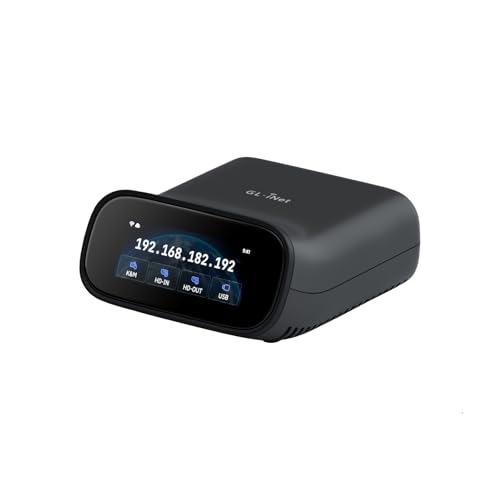
Best Wireless Pick – GL-RM10 Comet Pro
The GL.iNet GL-RM10 Comet Pro is a flexible choice among kvm over ip switches for desktops, combining wired and dual-band Wi-Fi 6 connectivity with 4K video passthrough. It also adds two-way audio, a touchscreen interface, and software-free browser access for Windows, macOS, and Linux hosts.
Best For: Home labs, remote support, and desktop users who want wireless flexibility plus secure remote access.
Pros:
- Supports 4K video passthrough at 30 frames per second with H.264 encoding.
- Offers both 2.4 GHz and 5 GHz Wi-Fi, along with wired connectivity.
- Built-in Tailscale and self-hosted cloud options support controlled remote access.
- Optional ATX Board or Fingerbot accessories can enable remote power control.
Cons:
- Power-control accessories are sold separately.
- 4K passthrough is limited to 30 frames per second.
- Its 0.6 A, 5 V design is intended for remote KVM functions rather than general device power delivery.
The touchscreen and broad client support make the Comet Pro approachable, while BIOS access and remote recovery capabilities give it practical value for unattended desktops and small servers.
Best Open-Source Platform – PiKVM V4 Plus
The PiKVM V4 Plus is a production-oriented option for shoppers comparing kvm over ip switches for desktops and servers. Based on the Raspberry Pi CM4, it provides remote keyboard, video, and mouse control with Ethernet, Wi-Fi, and optional cellular connectivity.
Best For: IT administrators and advanced users managing servers or PCs that need reliable BIOS and remote access capabilities.
Pros:
- Supports 1920×1080 and 1920×1200 at 60 Hz for desktop and UEFI/BIOS use.
- Includes Ethernet, Wi-Fi with an optional external antenna, and cellular connectivity channels.
- Turnkey package includes a power supply, USB and Ethernet cables, and PCI brackets.
- Provides extra storage through an internal USB 3.0 slot and includes two additional HDMI outputs.
Cons:
- Resolution support does not extend to 4K.
- The feature set and multiple connectivity options may be more than a basic desktop setup needs.
- Cellular connectivity is listed as an available channel but may require additional service or hardware.
With its included accessories, metal enclosure, and several network paths, the PiKVM V4 Plus is suited to users who prioritize a complete, expandable remote-management platform over a minimal desktop accessory.
Best Compact 4K Option – GL-RM1 Remote KVM
The GL.iNet Comet GL-RM1 is a compact hardware KVM for shoppers seeking kvm over ip switches for desktops without installing software on the controlled computer. It provides 4K at 30 Hz, BIOS-level access, remote audio, file transfer, and app-based control for PCs, laptops, routers, and servers.
Best For: Remote workers, IT professionals, and smart-home users who need a small KVM for BIOS access and unattended systems.
Pros:
- Provides 3840×2160 video at 30 Hz with hardware H.264 encoding.
- Supports remote rebooting, operating-system installation through BIOS, and computer power control.
- Connects over Gigabit Ethernet and requires no software on the host computer.
- Includes remote audio and file-transfer functionality.
Cons:
- Video output is limited to 30 Hz at 4K.
- The unit has one USB port and a compact hardware design suited to single-device control.
- PD adapters cannot be used.
Its small 85-gram enclosure makes the GL-RM1 easy to place near a desktop or server, while BIOS-level control gives it capabilities that software-only remote-desktop tools cannot provide.
Best Long-Distance Extender – AV Access 4K IP KVM
The AV Access 4K HDMI USB KVM Extender is a strong fit for kvm over ip switches for desktops when the display and computer need to be separated by a long distance. It carries HDMI, audio, and USB over Cat5e or better cabling, while allowing keyboard and mouse control across an existing IP network.
Best For: Control rooms, server racks, offices, classrooms, and distributed workstations requiring long-range 4K extension.
Pros:
- Extends 4K video, audio, and USB up to 390 feet over Cat5e and up to 492 feet over Cat6/6A/7.
- Supports 4K at 30 Hz, 1080p at 120 Hz, and 7.1-channel audio.
- Receiver provides three USB 2.0 ports for peripherals such as flash drives and gamepads.
- Up to 16 extender sets can operate on the same network using the DIP-switch pairing system.
Cons:
- 4K video is limited to 30 Hz.
- It uses separate transmitter and receiver units rather than a single compact device.
- Long-distance performance depends on suitable Cat cable and sufficient network bandwidth.
This extender is less about cloud-style remote access and more about relocating a workstation over structured cabling. Its long reach, peripheral support, and multi-set deployment make it practical for professional installations.
PoE 4K Remote Access – GL.iNet Comet Remote KVM
For shoppers comparing kvm over ip switches for desktops, the GL.iNet Comet is a compact remote KVM for controlling one computer or server over Ethernet. It supports 4K video at 30 FPS, PoE or USB-C power, and remote BIOS reinstall capabilities.
Best For: Desktop users, homelab operators, and administrators who want compact 4K remote access with PoE.
Pros:
- Supports 4K streaming at 30 FPS.
- PoE and USB-C provide flexible power options.
- Includes 32GB built-in eMMC and supports remote BIOS reinstall.
- USB connectivity supports ATX and Fingerbot interfaces.
Cons:
- Supports only one connected device.
- 4K operation is limited to 30 FPS.
The Comet is a strong fit when size, PoE support, and high-resolution access matter more than managing multiple systems. Its single-device design keeps the setup focused and straightforward.
Open-Source Low-Latency Control – JetKVM IP KVM
The JetKVM is a flexible choice among kvm over ip switches for desktops, connecting through HDMI and USB-C before providing browser-based remote control over Ethernet. It offers local access, optional cloud access, Wake-on-LAN, and 1080p at 60 FPS streaming.
Best For: Desktop owners and developers who want low-latency remote control with open-source software and expansion options.
Pros:
- Streams 1080p at 60 FPS with claimed 30–60 ms latency.
- Supports local browser access, optional cloud access, and Wake-on-LAN.
- Offers multiple power methods, including USB-C and separate 5V power.
- Open-source Linux design with an extension port for added hardware capabilities.
Cons:
- Video output and input arrangements may require adapters depending on the setup.
- Cloud access is optional but involves configuring the JetKVM cloud service.
JetKVM stands out for responsive 1080p control and customization potential. Its recovery features are particularly useful when a desktop crashes, fails to boot, or needs remote operating-system maintenance.
Subscription-Free PoE Out-of-Band Access – ArkKVM Open-Source KVM
For desktop, homelab, and headless-server users evaluating kvm over ip switches for desktops, ArkKVM provides browser-based BIOS and UEFI access even when the operating system is frozen or unavailable. It combines 1080p at 60Hz HDMI capture, PoE, remote reboot features, and open-source firmware.
Best For: Homelabs, Proxmox hosts, and desktops needing subscription-free BIOS-level remote administration.
Pros:
- Provides remote BIOS/UEFI access with 1080p at 60Hz capture.
- PoE supplies power and network connectivity through one Ethernet cable.
- Includes 32GB eMMC, ISO or virtual-media mounting, and Wake-on-LAN.
- Open-source Rust firmware works without installing an agent on the managed computer.
Cons:
- Remote power control requires an optional ATX expansion board.
- Its listed IP20 rating does not indicate protection from water or dust ingress.
ArkKVM is aimed at serious remote maintenance rather than basic screen sharing. Full-size HDMI, PoE, open-source firmware, and no subscription make it a practical alternative for systems without built-in IPMI or BMC features.
Best HDMI Extender KVM – 4K Over IP Desktop Access
For desktop setups that need long-distance video and peripheral extension, the OREI EX-500-KVM is a practical choice among kvm over ip switches for desktops. It sends 4K HDMI and USB signals up to 400 feet over shielded Cat6, with point-to-point or one-to-many operation through a separate gigabit network switch.
Best For: Desktop users who need 4K@60Hz video, remote keyboard and mouse access, and local HDMI monitoring over a wired network.
Pros:
- Supports 4K UHD 4:4:4 at 60Hz with HDCP 2.2 compliance.
- Extends HDMI, keyboard, and mouse signals up to 400 feet over Cat6.
- Supports one-to-many configurations and includes HDMI loop-out for local monitoring.
Cons:
- A separate 1G network switch is required for one-to-many operation.
- Only two USB 1.1 ports are provided for keyboard and mouse connectivity.
- Performance depends on high-quality shielded Cat6 cable; flat cables are not recommended.
The OREI is best suited to installations where 4K refresh rate and extended HDMI reach matter more than advanced browser-based management. Its plug-and-play design and automatic EDID/DDC handling simplify deployment, while the IR pass-through adds source-device control from the receiver location.
Best Multi-Host KVM – Quad-Port Remote KVM for Desktops
The GL.iNet Comet X is a flexible pick among kvm over ip switches for desktops when one device needs to manage several computers. It connects up to four hosts through dedicated HDMI and USB-C ports, offering front-panel, touchscreen, and browser-based switching over HTTPS.
Best For: Home labs, IT workspaces, and rack environments that need remote access to up to four desktops, laptops, or servers.
Pros:
- Controls up to four host systems through four HDMI inputs and USB-C device ports.
- Supports browser-based remote access over HTTPS without client software.
- Offers PoE power, 5V USB-C backup, touchscreen control, and included 10-inch and 19-inch rack brackets.
Cons:
- HDMI loop-out is limited to 4K at 30Hz.
- Its 170 × 90 × 40 mm rack-ready design may be more equipment than a basic single-PC setup requires.
- PoE operation requires compatible network infrastructure.
Comet X stands out when port count and installation flexibility are priorities. The touchscreen and physical button provide local control, while the 64GB eMMC storage supports system images and deployment files in addition to remote KVM functions.
Best Compact KVM – NanoKVM Lite Remote Desktop Control
The Sipeed NanoKVM Lite is a compact, DIY-friendly option among kvm over ip switches for desktops. Its RISC-V-based board provides web-accessible HDMI capture, USB keyboard and mouse simulation, and USB storage emulation for remote BIOS, operating-system, and headless-system management.
Best For: Developers, home-server users, and IT deployments needing an ultra-small KVM for remote boot, BIOS configuration, and OS installation.
Pros:
- Its 23 × 37 mm form factor fits tight spaces and uses approximately 0.2A at 5V.
- Supports remote HDMI viewing, USB HID control, and virtual USB storage.
- Open-source hardware and firmware allow customization, with Wake-on-LAN, Tailscale, and SSH compatibility.
Cons:
- Networking is limited to 100Mbps Ethernet.
- It has one USB port and is a board-level product rather than a full rack appliance.
- The compact design may require more DIY setup than a conventional plug-and-play KVM.
NanoKVM Lite is the most space-conscious choice in this group. It is particularly useful where remote BIOS or boot-media access matters, but buyers should be comfortable with its open-source, mini-board format and the included feature set rather than expecting a multi-port desktop switch.
How We Picked the Best Kvm Over Ip Switches for Desktops
We focused on the features that matter when remotely managing a desktop or server: reliable network access, BIOS-level control, keyboard and mouse support, video passthrough or streaming quality, setup requirements, and compatibility with modern operating systems. We also considered whether each device suits a single computer, a homelab, or a larger IT deployment.
Power options were another key consideration. PoE-capable models can simplify installations, while USB-powered units may be easier to deploy at a desk. Open-source firmware, Tailscale support, storage emulation, and multi-port designs can also make a major difference depending on your technical needs.
Quick Comparison
| Best For | Look For |
|---|---|
| Remote desktop troubleshooting | BIOS access, stable Ethernet, and low-latency control |
| Homelabs and headless servers | Open-source software, virtual media, and reboot support |
| Multiple computers | Several KVM ports or a quad-port design |
| High-resolution displays | 4K passthrough and appropriate refresh-rate support |
| Flexible installations | PoE, Wi-Fi, or long-distance Cat cable compatibility |
Key Buying Factors for Kvm Over Ip Switches for Desktops
Video Resolution and Passthrough
Check both the streamed remote-view resolution and the local passthrough specification. A device advertised as 4K may support different refresh rates, compression levels, or resolutions for remote access and the attached display.
BIOS, Reboot, and Virtual Media Control
For serious remote administration, screen viewing alone is not enough. Look for BIOS access, remote power or reboot capability, keyboard and mouse emulation, and virtual USB storage if you need to install operating systems or troubleshoot boot failures.
Network and Power Requirements
Ethernet generally provides more consistent performance than Wi-Fi, especially for high-resolution streaming. PoE can reduce cable clutter, but verify that your switch or injector supplies the required standard. For long cable runs, confirm compatibility with the intended Cat5e, Cat6, or higher-grade cabling.
Port Count and Compatibility
A single-port unit is usually sufficient for one desktop, while multi-port hardware makes more sense for several machines. Confirm HDMI or other video-interface compatibility, USB requirements, operating-system support, and whether the device can work behind your router or VPN.
Who Should Buy Which Kvm Over Ip Switches for Desktops?
Choose a compact single-port model for a personal desktop, travel setup, or small homelab. Open-source options are especially appealing if you want customization, local control, or integration with platforms such as Proxmox. PoE models are a strong fit for structured network installations and equipment racks.
For IT professionals managing several systems, a multi-port KVM can reduce hardware clutter and centralize access. If your priority is local 4K video extension over a long Ethernet cable rather than internet-based administration, choose a dedicated KVM extender designed for that use. Before buying, prioritize the feature you cannot add later—such as port count, BIOS control, PoE, or virtual media—then compare resolution and convenience features within that category.