USB-C KVM extenders make it easier to share displays, USB peripherals, and control between laptops or computers—even when the source devices and screens are separated by significant distances. The right model can simplify a conference room, control desk, home office, or multi-computer workstation.
We selected 10 options covering local USB-C switching, dual-monitor docking, HDBaseT transmission, Ethernet-based extension, high-wattage power delivery, and long-distance video-and-USB control. Use the guide below to match the extender’s connection method, resolution support, and port selection to your setup.
Best 10 USB C Kvm Extenders Picks for 2026
Best for Conference Rooms
Long-Range BYOM USB-C KVM Extender

- Dual 4K@60Hz displays over Cat6A/7 up to 100m
- Switches between USB-C and USB-B hosts
- Extends USB 3.2, Ethernet, audio, RS232, and power
Best For: BYOM conference rooms and permanent AV installations
Best Desktop Dock

- Shares dual 4K@60Hz DisplayPort monitors
- Provides 90W active-host and 45W standby charging
- Includes USB, Ethernet, audio, and IT-management features
Best For: Dual-laptop desks and managed office workstations
Best Wall-Plate Installation

- Extends HDMI and USB-C up to 330ft over Cat cable
- Supports 4K@60Hz, HDR10+, and 18Gbps video
- Uses manual or automatic dual-host switching
Best For: Fixed conference-room and professional AV installations
Best for USB4 Monitor Sharing

- Shares one USB-C or Thunderbolt 4 monitor or dock
- Supports up to 20Gbps data and 140W power pass-through
- Handles up to 8K@30Hz on Windows
Best For: Switching a compatible monitor or detachable-cable dock between two laptops
Best for Long-Distance Dual Displays
J-Tech Digital USB-C HDBaseT Extender

- 330-foot USB 3.2 extension over Cat6A/7
- Dual 4K@60Hz HDMI outputs
- Extends USB, audio, LAN, RS232, and FSYNC
Best For: Conference rooms and professional AV installations
Best for Two-Laptop Workspaces

- Switches two USB-C laptops from one workspace
- Supports dual 4K@60Hz displays
- Adds 100W charging, Ethernet, USB, and SDXC
Best For: Shared home-office and hybrid-work desks
Best Budget HDMI KVM Extension
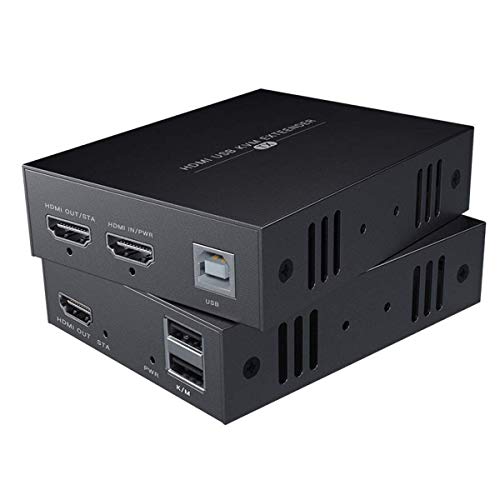
- Extends 1080p@60Hz HDMI video
- Reaches up to 164 feet with Cat6/7
- Adds remote keyboard-and-mouse control
Best For: Basic remote-monitor computer setups
Best Dual-Monitor USB-C KVM
Dual-Monitor 8K USB-C HDMI KVM

- Shares two monitors between a USB-C laptop and HDMI desktop
- Supports HDMI up to 8K at 60Hz and USB-C up to 4K at 60Hz
- Includes four USB 3.0 ports and up to 100W laptop PD
Best For: High-resolution desk setups with two computers and two monitors
Best Network-Ready KVM Extender

- Extends HDMI, audio, and USB up to 390 feet over Cat5e
- Can use an existing IP network for remote KVM control
- Supports 4K at 30Hz and up to 16 extender sets
Best For: Long-distance office, server-room, and control-center deployments
Best HDBaseT KVM Extender

- Delivers 4K at 60Hz up to 330 feet over CAT6A/7
- Reaches up to 490 feet at 1080p
- Uses HDBaseT 3.0 with zero-latency transmission
Best For: Dedicated long-distance 4K AV and KVM installations
Best for Conference Rooms – Long-Range BYOM USB-C KVM Extender
For conference rooms that need USB C KVM extenders with substantial reach, this AV Access model sends dual-display video, USB, Ethernet, audio, RS232, and power up to 100m over one Cat6A/7 cable. It supports one USB-C host and one USB-B host, making presenter switching practical without repeatedly unplugging equipment.
Best For: BYOM conference rooms, hybrid meeting spaces, and structured AV installations requiring dual 4K displays over a long cable run.
Pros:
- Extends two displays at up to 4K@60Hz over 100m/330ft.
- Supports USB 3.2 Gen 1 speeds up to 5Gbps for cameras, speakerphones, and storage.
- Includes DisplayLink for multi-display output on compatible laptops with limited native display support.
- One-way PoH+ can power both units from a single adapter.
Cons:
- The installation is more involved than a short-range desktop KVM.
- DisplayLink requires its integrated driver to be used for that display functionality.
- Its professional feature set may be more than a simple two-computer setup needs.
This is a strong choice when distance, conference-room integration, and peripheral connectivity matter as much as switching. Its 1Gb Ethernet, RS232, GPIO, mounting hardware, and included cables make it especially suitable for permanent installations.
Best Desktop Dock – Dual-Host USB-C KVM Dock
This StarTech USB C KVM extender alternative is designed for a desk rather than a 100m cable run. It switches between two laptops while sharing dual 4K DisplayPort monitors, USB peripherals, Ethernet, and audio, with a front-mounted toggle for straightforward host selection.
Best For: Workstations where two laptops need to share two monitors, input devices, networking, and a full selection of dock ports.
Pros:
- Supports dual 4K displays at 60Hz through DisplayPort.
- Charges the active laptop at up to 90W and the standby host at 45W.
- Works with Windows, macOS, ChromeOS, and Linux systems.
- Provides Gigabit Ethernet, 10Gbps USB-A and USB-C, audio, and USB HID ports.
Cons:
- Driver installation is required on Windows and macOS.
- It is a desktop docking station, not a long-distance extender over Cat6 cable.
- Display output depends on the connected laptop and operating-system compatibility.
Choose this model when your priority is a capable dual-laptop workstation with charging and connectivity built in. The front toggle and IT-oriented features, including MAC address pass-through and USB event monitoring, also suit managed office environments.
Best Wall-Plate Installation – 4K HDBaseT USB-C KVM Extender
Among USB C KVM extenders, the OREI HDBaseT model stands out for fixed installations that need a discreet wall-plate design. It carries HDMI and USB-C signals up to 330ft over a single Cat6/6a/7 cable, while allowing two computers to share one display, keyboard, and mouse.
Best For: Conference rooms, control centers, and professional AV systems needing long-range 4K video with a clean one-gang Decora-style installation.
Pros:
- Supports 4K@60Hz, 18Gbps bandwidth, HDR10/HDR10+, and 4:4:4 video.
- Offers manual or automatic switching between HDMI and USB-C hosts.
- Extends signals up to 330ft/100m over one Cat6/6a/7 cable.
- Includes USB 2.0 peripheral extension and PoC for a cleaner installation.
Cons:
- USB peripheral connectivity is limited to USB 2.0 speeds.
- It supports one shared display rather than a dual-monitor setup.
- The wall-plate format is less convenient for temporary or portable setups.
This extender is a good fit when installation appearance and long-distance HDMI performance are priorities. Its HDR support, broad audio-format compatibility, and automatic switching make it well suited to polished conference-room or control-room deployments.
Best for USB4 Monitor Sharing – 20Gbps USB-C KVM Switch
This Cable Matters switch is a compact option for sharing a USB-C or Thunderbolt 4 monitor or compatible dock between two computers. It supports USB4 data rates up to 20Gbps and up to 140W power pass-through, making it a useful desktop choice among USB C KVM extenders when a single-cable monitor or dock workflow is the goal.
Best For: Users who want to switch one USB-C/Thunderbolt 4 monitor or detachable-cable dock between two laptops.
Pros:
- Supports up to 20Gbps USB4 data transfer.
- Handles up to 8K@30Hz on Windows and 4K@60Hz on macOS with a single compatible monitor.
- Passes through up to 140W of power to the active computer.
- Can share compatible Thunderbolt 4 docks between two computers.
Cons:
- It requires the included USB4 20Gbps cables; substitute cables are not recommended.
- It is not intended for docks with attached host cables.
- Its 20Gbps bandwidth may limit displays or refresh rates compared with a 40Gbps dock setup.
This is best viewed as a focused USB-C monitor or dock-sharing switch rather than a long-distance extender. Check the cable and dock requirements carefully, especially for multi-monitor use, Windows MST configurations, and macOS display limitations.
Best for Long-Distance Dual Displays – J-Tech Digital USB-C HDBaseT Extender
For demanding USB C KVM extenders installations, this J-Tech Digital kit combines long-range USB 3.2 extension with dual-monitor video and peripheral connectivity. It sends signals up to 330 feet over a single Cat6A/7 cable and supports a USB-C host connection.
Best For: Conference rooms, hybrid workspaces, and professional AV setups requiring dual 4K displays and extended peripherals.
Pros:
- Extends USB 3.2, dual HDMI video, audio, RS232, FSYNC, and 1G Ethernet over long distances.
- Supports dual 4K@60Hz HDMI output with DisplayLink technology.
- Includes USB-A, USB-C, LAN, audio, and professional pass-through connections.
- Offers one-year manufacturer warranty and lifetime technical support.
Cons:
- Its professional feature set may be more than a basic home setup needs.
- Requires Cat6A/7 cabling for the stated 330-foot range.
This is the strongest choice when distance, dual 4K output, and broad AV integration matter more than a compact or minimal installation.
Best for Two-Laptop Workspaces – AV Access USB-C KVM Dock
This AV Access unit is a USB C KVM extender alternative for users who want to share a complete desk between two USB-C laptops. It combines KVM switching, dual-monitor support, charging, networking, and peripheral connectivity in one docking station.
Best For: Home offices, hybrid workers, programmers, designers, and IT users switching between two compatible USB-C laptops.
Pros:
- Controls two USB-C laptops with shared monitors, keyboard, mouse, headset, network, and USB devices.
- Supports dual 4K@60Hz displays from compatible Windows laptops using MST.
- Provides up to 100W charging for each laptop with external USB-C chargers.
- Includes USB 3.0, USB 2.0, USB-C, SDXC, headset, and Gigabit Ethernet connections.
Cons:
- Dual-display output requires compatible DP Alt Mode and MST support.
- It is designed for USB-C laptops rather than long-distance cable extension.
Choose this model if your priority is a tidy two-computer workstation with fast switching and dock-like connectivity rather than remote-room signal transmission.
Best Budget HDMI KVM Extension – 1080p Cat Cable KVM Extender
For a straightforward and lower-resolution approach to USB C KVM extenders, this HDMI KVM extender sends 1080p video and USB keyboard-and-mouse control over Cat5e, Cat6, or Cat7 cable. It is intended for extending a computer connection to a remote monitor.
Best For: Basic computer, system, and remote-monitor installations needing 1080p video with keyboard and mouse control.
Pros:
- Transmits 1080p@60Hz HDMI video over Ethernet cable.
- Supports distances up to 164 feet with Cat6/7 cable or 130 feet with Cat5e.
- Provides remote keyboard-and-mouse control through USB KVM functionality.
- Works with Windows, Mac OS, and Linux systems listed by the manufacturer.
Cons:
- Limited to 1080p and does not provide 4K output.
- Uses HDMI and USB connections rather than a native USB-C host connection.
- Requires stronger Cat6/7 cabling for maximum distance and quality.
This model makes sense for simple remote-control setups where 1080p is sufficient, but newer USB-C and 4K workflows will be better served by the other options.
Best Dual-Monitor USB-C KVM – Dual-Monitor 8K USB-C HDMI KVM
For shoppers comparing usb c kvm extenders for a compact two-computer desk, this switch combines USB-C and HDMI connectivity with dual-monitor sharing. It supports one USB-C laptop and one HDMI desktop, while letting you switch shared displays and peripherals from the front button or wired remote.
Best For: Professionals, creators, and gamers sharing two monitors between a laptop and desktop.
Pros:
- Supports dual monitors, with HDMI input resolutions up to 8K at 60Hz and 4K at 144Hz; USB-C input supports 4K at 60Hz.
- Shares four USB 3.0 ports with data speeds up to 5Gbps.
- Provides a dedicated PD port rated up to 100W for compatible laptops.
- Offers button and wired-remote switching with no driver installation.
Cons:
- The laptop USB-C port must support video output through DP Alt Mode and power delivery.
- Actual laptop charging is listed as approximately 73W to 85W in some conditions.
- It requires the included power adapter for reliable USB peripheral operation.
This is the most desk-focused option in the group, prioritizing high-resolution dual-monitor control, fast peripheral sharing, and laptop charging rather than long-distance signal extension.
Best Network-Ready KVM Extender – 4K HDMI USB KVM Over Ethernet
This AV Access model is a practical choice when usb c kvm extenders are being considered for a remote workstation or server-room installation. Rather than using USB-C video, it sends HDMI, audio, USB, and control signals over Cat5e or better cabling, including an existing IP network.
Best For: Server rooms, control centers, distributed workstations, and installations needing up to 390 feet of extension.
Pros:
- Extends HDMI, audio, and USB up to 390 feet over Cat5e, or up to 492 feet over Cat6/6A/7 cable.
- Supports 4K at 30Hz, 1080p at 120Hz, and 7.1-channel audio.
- Provides remote keyboard, mouse, and peripheral control through USB 2.0.
- Allows up to 16 extender sets on the same network using DIP-switch pairing.
Cons:
- Video performance is limited to 4K at 30Hz rather than 4K at 60Hz.
- The extender uses USB 2.0, with listed transfer speeds up to 480Mbps.
- It requires separate transmitter and receiver placement plus suitable Ethernet cabling or network infrastructure.
Choose this system when distance, network flexibility, and remote USB control matter more than USB-C-native connectivity or the highest refresh rates.
Best HDBaseT KVM Extender – 4K USB-C HDMI Extender
For a dedicated point-to-point installation, this OREI unit uses HDBaseT 3.0 over CAT6A or CAT7 Ethernet cable to carry 4K video and USB control. It is a strong alternative to USB-C KVM extenders when stable, low-latency transmission across a room or facility is the priority.
Best For: 4K displays, AV installations, and remote computer control over runs up to 330 feet.
Pros:
- Transmits 4K at 60Hz up to 330 feet over CAT6A/7 cable.
- Can reach up to 490 feet at 1080p and is specified for zero-latency, lossless transmission.
- Uses HDBaseT 3.0 and supports HDR10+ and HLG.
- Includes USB 2.0 KVM functionality and dual-voltage power support with an international adapter/converter.
Cons:
- For the longest listed distance, resolution drops to 1080p at 60Hz.
- It is designed around CAT6A/7 cabling rather than a simple direct USB-C connection.
- The supplied details list two ports and do not describe multi-computer switching features.
This OREI extender suits buyers who want smooth 4K60 transmission and low-latency remote control through a dedicated HDBaseT link, especially where a network-based extender is unnecessary.
How We Picked the Best USB C Kvm Extenders
We evaluated these USB-C KVM extenders by comparing the capabilities most likely to affect real-world setup and daily use: host compatibility, supported video resolution and refresh rate, number of displays, USB bandwidth, switching method, transmission distance, power delivery, and network or control features. We also separated local KVM docks from true long-range extender kits, since they solve different problems.
Specifications such as “4K” or “8K” do not tell the whole story. A system may require specific cables, DisplayPort Alt Mode, HDMI versions, compression, or dedicated transmitters and receivers. Confirm the complete signal path before buying.
Quick Comparison
| Best For | Look For | Notable Capabilities |
|---|---|---|
| Desk-based two-computer switching | USB-C KVM dock or switch | Dual displays, shared USB accessories, laptop charging |
| Conference rooms and control desks | HDBaseT or Ethernet extender | Long cable runs, remote keyboard and mouse control |
| High-resolution workstations | 4K/60Hz or 8K support | Higher bandwidth, compatible display outputs, suitable cables |
| Power-hungry laptops | High-wattage USB-C PD | 90W, 100W, or 140W charging, depending on the model |
Key Buying Factors for USB-C KVM Extenders
Transmission Distance and Cable Type
For devices positioned near the monitors, a conventional USB-C KVM dock is usually simpler. For remote placement, choose HDBaseT or network-based models that use Cat5e, Cat6, Cat6A, or better cabling. Check whether the advertised distance applies to the exact resolution, refresh rate, and USB features you need.
Display Support
Verify the number and type of outputs. Dual-monitor users should confirm whether both screens can run simultaneously at their desired resolution and refresh rate. USB-C video may depend on DisplayPort Alt Mode, while HDMI and DisplayPort outputs can have different bandwidth limits.
USB, Switching, and Control
Consider how many USB devices must be shared and whether you need USB 3.x speeds for storage, cameras, or other high-bandwidth peripherals. Manual buttons, wired remotes, hotkeys, and automatic switching offer different levels of convenience. Long-range installations may also benefit from RS-232, Ethernet, or other control options.
Power Delivery and Compatibility
Choose enough USB-C PD capacity for the host laptop, but remember that advertised wattage may be shared with connected devices. Confirm operating-system support, host-port requirements, included power supplies, and whether your laptop can drive the desired number of external displays.
Who Should Buy Which USB C Kvm Extenders?
- Choose a USB-C KVM dock or switch if both computers and displays sit on the same desk and you want convenient peripheral sharing with minimal installation.
- Choose an HDBaseT wall-plate extender for conference rooms, classrooms, studios, or permanent installations where a clean Cat6A run and long-distance control matter.
- Choose an Ethernet-based extender when you need a flexible cable route, a longer reach, or network-style installation options.
- Choose a high-bandwidth model for 4K/60Hz multi-monitor work, high-refresh displays, fast USB storage, or newer laptops—but confirm every connected component supports the target specification.
- Choose a high-PD model when one shared dock should power demanding laptops while also handling displays and USB accessories.
Before ordering, map the complete setup: each computer’s ports, monitor inputs, desired resolution, cable distance, USB devices, and charging requirement. That checklist will narrow the field more reliably than headline bandwidth alone.