The best docking stations with DisplayLink make it easier to connect a laptop to two or three external monitors, especially when your computer has limited native display outputs. They can also consolidate charging, USB accessories, Ethernet, audio, and other desk connections through one dock.
Our 2026 roundup includes compact USB 3.0 models, USB-C docks with high-wattage power delivery, and triple-display options for Mac and Windows systems. Use the buying guide below to compare compatibility, bandwidth, charging, and everyday usability before choosing a dock.
Best 10 Docking Stations with Displaylink Picks for 2026
Compact Connectivity Pick
Giq Dual-HDMI DisplayLink Dock

- Dual HDMI with up to 4K at 30Hz
- Three USB 3.0 ports and Gigabit Ethernet
- Compact design with SD and microSD readers
Best For: Portable dual-display setups and everyday office peripherals
Triple-Screen Workstation Choice
WAVLINK 3-Monitor DisplayLink Dock

- Supports 4K plus two 2K displays at 60Hz
- 100W power delivery with 130W adapter
- Six 10Gbps USB ports and Gigabit Ethernet
Best For: Three-monitor home-office and professional productivity setups
Mac Dual-4K Solution
Plugable 14-in-1 DisplayLink Dock

- Dual 4K 60Hz HDMI and DisplayPort output
- 100W charging with 14-in-1 connectivity
- Designed to bypass some Mac display limits
Best For: MacBook and Windows dual-4K productivity workstations
Best Budget Dual-HDMI Pick

- Dual HDMI up to 1920×1200 at 60Hz
- Six USB ports plus Ethernet and audio
- Two-year coverage with lifetime support
Best For: Affordable dual-HDMI productivity setups
Best Triple-Display USB-C Dock
- Adds three external displays through DisplayLink
- Up to 100W laptop charging
- 10-in-1 connectivity with HDMI, DisplayPort, and Ethernet
Best For: Three-screen USB-C workstations
Best Dual-4K DisplayLink Dock

- Supports two 4K displays at 60Hz
- Two HDMI and two DisplayPort outputs
- Works with USB-A, USB-C, and Thunderbolt laptops
Best For: Dual-4K office and multitasking setups
Best Enterprise Triple-Display Dock

- Three HDMI displays with DisplayLink support
- 100W charging and Gigabit Ethernet
- Broad Windows, Mac, and ChromeOS compatibility
Best For: Hybrid teams and managed office deployments
Best Dual-Display 4K Dock

- Two displays up to 4K at 60Hz
- 100W charging and 10Gbps data
- VESA mountable with Kensington Lock support
Best For: Secure dual-monitor office and home-office setups
Best Triple-Monitor Value Dock
- Three HDMI outputs with DisplayLink
- 100W laptop and 20W accessory charging
- Ethernet, SD, USB, and audio connectivity
Best For: Multi-monitor office and fleet deployments
Compact Connectivity Pick – Giq Dual-HDMI DisplayLink Dock
This compact Giq adapter is a practical entry point for shoppers comparing docking stations with DisplayLink. It combines dual-HDMI display extension or mirroring with three USB 3.0 ports, Gigabit Ethernet, and SD and microSD card readers. Its USB-C port is for powering the dock rather than charging the laptop.
Best For: Travelers, home-office users, and laptop owners who need dual HDMI, wired networking, and basic peripheral expansion in a small enclosure.
Pros:
- Supports dual-HDMI extended or mirrored output, including up to 4K at 30Hz or 1080p.
- Includes three USB 3.0 ports, Gigabit Ethernet, and SD/microSD card readers.
- Compact aluminum-and-plastic design with broad Windows, macOS, ChromeOS, Ubuntu, and Android compatibility listed.
Cons:
- The USB-C port does not charge the connected laptop.
- SD and microSD slots cannot be used simultaneously.
- 4K output is limited to 30Hz.
Choose this model when portability and a wide selection of everyday ports matter more than high-refresh 4K video or laptop power delivery. Confirm your laptop’s compatibility before buying, particularly for DisplayLink-based multi-display use.
Triple-Screen Workstation Choice – WAVLINK 3-Monitor DisplayLink Dock
For a more capable workstation, this WAVLINK model is one of the docking stations with DisplayLink designed for up to three external monitors. It combines 4K 60Hz HDMI with two 2K 60Hz HDMI/DisplayPort outputs, 100W power delivery, six 10Gbps USB ports, and Gigabit Ethernet.
Best For: Home offices, coding stations, stock-trading dashboards, online learning, and mixed USB-C laptop environments requiring three screens.
Pros:
- Supports a 4K 60Hz display plus two 2K 60Hz displays.
- Offers 100W laptop charging with the included 130W power adapter.
- Six USB ports support up to 10Gbps individually, alongside Gigabit Ethernet.
- Designed for extended daily use with heat-dissipation vents and anti-slip pads.
Cons:
- DisplayLink driver installation is required for Mac systems and full functionality.
- It does not support USB-A laptops or gaming consoles.
- Not recommended for gaming or HDCP-protected 4K streaming.
This is a strong productivity-focused option if three displays, fast USB transfers, and laptop charging are priorities. Check that the host USB-C port supports video output, since that capability is required.
Mac Dual-4K Solution – Plugable 14-in-1 DisplayLink Dock
This Plugable dock is aimed at Mac and Windows users seeking docking stations with DisplayLink that can overcome certain single-external-display limitations. It supports two 4K 60Hz monitors through HDMI, DisplayPort, or both, while adding 100W charging, USB ports, card readers, Ethernet, and a headset jack.
Best For: M1–M5 and Neo MacBook users, hybrid workers, and office setups that need dual 4K displays from a compatible USB-C, USB4, or Thunderbolt system.
Pros:
- Enables two 4K 60Hz displays through HDMI and DisplayPort.
- Provides 100W laptop charging and a broad 14-in-1 port selection.
- Includes front-facing USB ports, SD and microSD readers, Ethernet, and a 3.5mm headset jack.
- Offers lifetime support from Plugable’s North American connectivity team.
Cons:
- DisplayLink software installation is required on macOS, Windows, and ChromeOS.
- HDCP is not supported.
- Host devices must have a full-featured compatible USB-C, USB4, or Thunderbolt port.
For Mac users who need two extended 4K screens, this is the most targeted choice in the group. Its extensive port selection also suits fixed desks, but buyers should account for the required driver and HDCP limitation.
Premium Windows Powerhouse – Anker Prime DL7400 DisplayLink Dock
The Anker Prime DL7400 is a premium choice among docking stations with DisplayLink, offering triple 4K display support for Windows laptops along with high-power charging and a large port array. Its smart display reports charging and display information, while built-in cooling is intended to support sustained use.
Best For: Windows professionals building a high-end three-monitor desk with fast USB-C connectivity, 2.5Gbps Ethernet, and substantial power delivery.
Pros:
- Supports three external 4K displays at 60Hz through two HDMI ports and one DisplayPort.
- Provides up to 140W through the upstream port and includes multiple high-speed USB-C ports.
- Includes 2.5Gbps Ethernet, SD and TF card slots, audio connectivity, and 14 total connections.
- Smart display, built-in fan, and ActiveShield 3.0 support monitoring and cooling.
Cons:
- Designed for USB-C Windows laptops and requires the latest DisplayLink driver.
- Front USB-C ports do not support video output for USB-C or Thunderbolt monitors.
- DisplayLink limitations may cause DRM-protected streaming services to show a black screen.
This dock makes the most sense for a demanding Windows workstation where triple 4K output, high-wattage charging, and fast networking justify a larger premium dock. Use the included USB-C 3.2 Gen 2 cable to help ensure proper operation.
Best Budget Dual-HDMI Pick – Plugable UD-3900
If you need a practical entry point into docking stations with DisplayLink, the Plugable UD-3900 emphasizes straightforward dual-monitor productivity. It connects through USB 3.0 or USB-C and adds two HDMI outputs, Gigabit Ethernet, audio, and six USB ports, but it does not charge the host laptop.
Best For: Home-office users who want two Full HD HDMI displays and plenty of USB connectivity for web browsing and productivity software.
Pros:
- Supports two HDMI monitors up to 1920×1200 at 60Hz.
- Includes Gigabit Ethernet, headphone and microphone jacks, and six USB ports.
- Works with Windows, macOS, and ChromeOS with the applicable driver or setup requirements.
- Includes two-year coverage and lifetime support.
Cons:
- Does not support 4K displays.
- Does not charge the connected laptop.
- Not designed for gaming, DisplayPort connections, Linux/Unix, or HDCP-protected streaming content.
The UD-3900 is a sensible productivity dock when dual HDMI and broad peripheral support matter more than 4K, laptop charging, or high-performance media use.
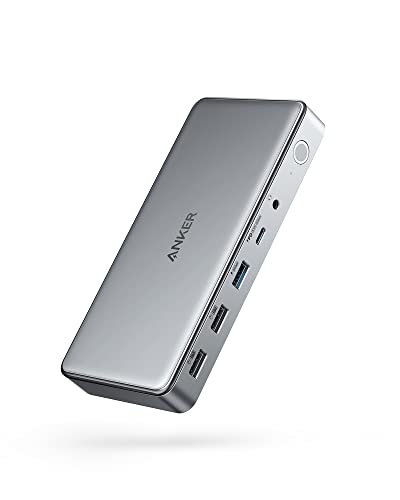
Best Triple-Display USB-C Dock – Anker DL6350
The Anker DL6350 is a strong choice among docking stations with DisplayLink when one USB-C connection needs to support three external screens. It combines two HDMI ports, DisplayPort, 100W laptop charging, fast USB ports, Ethernet, and audio in a 10-in-1 design.
Best For: USB-C laptop users building a three-screen workstation with charging and a mix of modern and legacy peripherals.
Pros:
- Supports three displays, with up to 4K at 30Hz on the main display and up to 1920×1080 at 60Hz on the second and third.
- Provides up to 100W Power Delivery for the connected laptop and 30W USB-C charging for a phone.
- Offers 5Gbps USB-C and USB-A data ports, Ethernet, AUX, and two additional USB-A 2.0 ports.
- Includes a 180W power adapter and an 18-month warranty.
Cons:
- Requires the latest DisplayLink driver; Mac users must enable screen-recording permissions for normal functionality.
- The second and third displays are limited to 1920×1080 at 60Hz.
- Designed for USB-C hosts, so it is less flexible for laptops without that port.
For compatible USB-C laptops, the DL6350 stands out for combining triple-display support with host charging, though setup requirements and mixed display resolutions are worth checking first.
Best Dual-4K DisplayLink Dock – WAVLINK Dual 4K
The WAVLINK DisplayLink dock is aimed at users who want two sharp external displays from a broad range of laptops. It supports dual 4K at 60Hz through flexible HDMI and DisplayPort combinations, while also adding six USB 3.0 ports, Gigabit Ethernet, and audio.
Best For: Home-office and business users who need dual 4K productivity monitors and compatibility with USB-A, USB-C, USB4, or Thunderbolt laptops.
Pros:
- Supports up to two 4K monitors at 60Hz.
- Offers two HDMI and two DisplayPort outputs for flexible monitor combinations.
- Works with Windows, macOS, and ChromeOS, including Apple Silicon Macs, after DisplayLink driver installation.
- Includes six USB 3.0 Type-A ports, Gigabit Ethernet, audio, and a 24-month warranty.
Cons:
- Does not charge the connected laptop.
- Requires DisplayLink drivers for video output and is not compatible with Linux.
- Not intended for gaming, high-frame-rate video editing, or DRM-protected streaming.
The WAVLINK is the most display-focused option here, pairing dual-4K capability with flexible video outputs; just plan for driver installation and use it primarily for productivity rather than entertainment or gaming.
Best Enterprise Triple-Display Dock – Hybrid Workspace Expansion
For organizations comparing docking stations with displaylink, this Plugable model stands out as an enterprise-oriented option for expanding compatible USB-C, USB4, and Thunderbolt laptops to as many as three HDMI monitors. It combines DisplayLink with native USB-C video, 100W laptop charging, Gigabit Ethernet, and six USB 3.0 ports.
Best For: Hybrid teams and managed workspaces that need triple-display support across Windows, macOS, or ChromeOS fleets.
Pros:
- Supports up to three extended HDMI displays, including two 1080p monitors through DisplayLink.
- Provides 100W USB-C Power Delivery for the host laptop.
- Offers broad compatibility with Windows, macOS, ChromeOS, USB4, and Thunderbolt systems.
- Includes Gigabit Ethernet, six USB 3.0 ports, audio, and lifetime North American support.
Cons:
- Not compatible with Linux.
- macOS requires driver installation, and HDCP is not supported.
- The third display configuration is limited to the listed resolution and connection requirements.
This is a strong choice when fleet compatibility, wired networking, and three-screen productivity matter more than a minimal setup. Confirm that your laptop has a full-featured USB-C port and that your workflow does not require HDCP-protected playback.
Best Dual-Display 4K Dock – Secure 14-in-1 Connectivity
This Belkin is a versatile pick among docking stations with displaylink, turning one USB-C connection into a 14-port workstation. It supports up to two HDMI or DisplayPort monitors at resolutions up to 4K at 60Hz, while also providing 100W Power Delivery, 10Gbps data transfer, Ethernet, and legacy-device support.
Best For: Users who want a polished dual-monitor desk with 4K output, fast peripheral connectivity, and added physical security.
Pros:
- Supports two extended or mirrored displays with up to 4K at 60Hz output.
- Includes 100W laptop charging and USB 3.2 Gen 2 data speeds up to 10Gbps.
- Provides 14 ports, including HDMI, DisplayPort, Gigabit Ethernet, and USB connections.
- VESA mountability, Kensington Lock compatibility, and five-point safety protection suit office setups.
Cons:
- DisplayLink installation is required for macOS.
- It supports two displays rather than the three-screen expansion offered by some alternatives.
- Monitor cables are not specified as included in the supplied details.
The Belkin balances high-resolution dual-monitor output with fast data transfer and workplace-friendly security features. It is especially appealing for a fixed office or home-office setup where two 4K screens are sufficient.
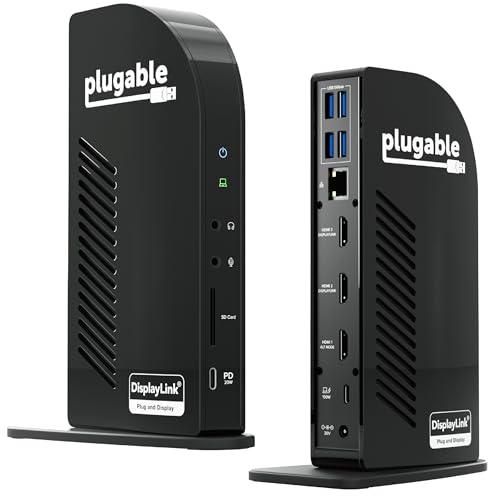
Best Triple-Monitor Value Dock – Fleet-Ready 13-in-1 Setup
For buyers seeking docking stations with displaylink and extensive desk connectivity, this 13-in-1 Plugable dock supports three extended HDMI displays alongside 100W laptop charging, 20W accessory charging, Ethernet, USB ports, SD storage, and audio. It is designed for office, education, government, and home-office deployments.
Best For: Fleet deployments and multi-monitor users who need three HDMI outputs plus practical peripheral and card-reader connectivity.
Pros:
- Supports three extended HDMI displays, with up to 4K at 30Hz on HDMI 1.
- Delivers 100W laptop charging and 20W charging for phones or accessories.
- Includes four USB-A 5Gbps ports, Gigabit Ethernet, SD card reader, and audio in/out.
- Supports Windows, macOS, ChromeOS, USB4, and Thunderbolt systems, with lifetime support.
Cons:
- macOS requires DisplayLink Manager installation for multiple displays.
- HDCP-protected playback, including services such as Netflix and Hulu, is not supported.
- Secondary HDMI outputs are limited to up to 1920×1200 at 60Hz.
This dock is a practical workstation hub when three screens and a broad selection of built-in ports are priorities. Its output limits and lack of HDCP support make it less suitable for protected streaming or users seeking three high-refresh 4K displays.
How We Picked the Best Docking Stations with Displaylink
We selected these 10 docks based on the features that matter most in a multi-monitor workspace: DisplayLink support, monitor capacity, connection types, charging capability, operating-system compatibility, port selection, and practical setup requirements. The list includes dual- and triple-display docks, USB-A and USB-C models, and options designed for both Windows laptops and newer Macs.
Because DisplayLink uses software and USB bandwidth to drive additional screens, we also considered whether each dock is positioned for office productivity, flexible home-office use, or higher-resolution monitor setups. Actual performance can vary by laptop, monitor resolution, refresh rate, installed drivers, and the quality of the USB connection.
Quick Comparison
| What to Compare | Why It Matters |
|---|---|
| Display outputs | Check whether the dock supports two or three monitors and whether it uses HDMI, DisplayPort, or both. |
| Resolution and refresh rate | Confirm support for your target setup, such as dual 4K displays or 1080p screens at higher refresh rates. |
| Host connection | USB-C is convenient, while USB 3.0 models can work with older laptops; adapters may be needed for some ports. |
| Power delivery | Higher-wattage docks can charge compatible laptops while peripherals and displays are connected. |
| Extra ports | USB, Ethernet, audio, card readers, and additional video outputs reduce desk cable clutter. |
Key Buying Factors for Docking Stations with Displaylink
Monitor Compatibility
Start with the number and type of displays you need. A dual-monitor dock is usually sufficient for productivity, while a triple-display model suits users who keep email, documents, dashboards, or creative tools visible at the same time. Verify the supported resolution and refresh rate rather than relying only on the monitor count.
Mac and Windows Support
DisplayLink docks generally require a driver or application. Check compatibility for your exact operating system and laptop generation, particularly with Apple silicon Macs. Some systems require permission for screen recording or accessibility features before external displays work correctly.
Power and Bandwidth
A dock advertised with 100W power delivery may reserve some wattage for its own operation, so compare the delivered charging power with your laptop’s requirements. For the smoothest experience, connect a high-resolution setup to a suitable USB-C or USB 3.x port and avoid overloading the dock with bandwidth-heavy peripherals.
Ports and Setup
Count the accessories you use daily before buying. Ethernet is valuable for stable office connections, while extra USB-A ports help with older keyboards, storage devices, and receivers. Look for a dock with a dependable power adapter and enough cable length to position it neatly.
Who Should Buy Which Docking Stations with Displaylink?
- For a basic dual-monitor office: Choose a USB 3.0 or USB-C dual-display dock with the ports you already use.
- For a three-screen workstation: Select a triple-display DisplayLink model and confirm your laptop, monitor resolutions, and driver support.
- For newer USB-C laptops: Prioritize USB-C connectivity, strong power delivery, and the correct video connectors.
- For older laptops: A USB 3.0 universal dock can add displays without requiring native USB-C video support.
- For Mac users: Confirm support for your specific Apple silicon generation and install the required DisplayLink software before finalizing your setup.