A powered docking station can turn a laptop into a practical desktop replacement, adding monitors, USB accessories, wired networking, storage, and charging through a single connection.
We selected 10 powered docking stations for different needs, from compact dual-display hubs to high-port models built for triple-monitor productivity. Use the guide below to narrow your choice by display support, power delivery, compatibility, and desk setup.
Best 10 Powered Docking Stations Picks for 2026
Best Smart-Powered Dock
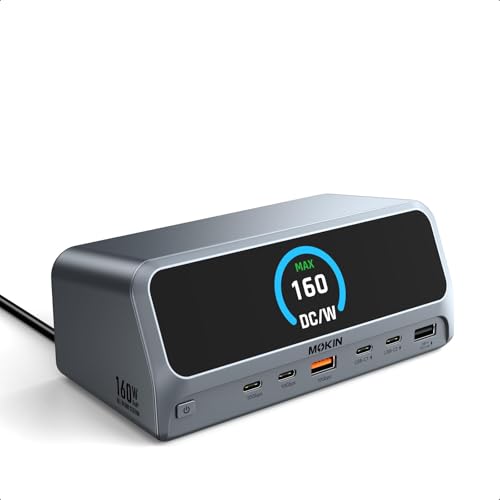
- Built-in 160W power supply
- Dual 4K HDMI with Windows extend mode
- LCD status display and privacy button
Best For: Windows dual-monitor workstations with multiple charging needs
Best Vertical Powered Dock

- Triple-display support on Windows
- Compact upright aluminum design
- Up to 85W laptop charging with a 100W adapter
Best For: Space-conscious Windows users running multiple monitors
Best Port Variety Powered Dock
LIONWEI 13-in-1 Triple Display Hub

- Dual HDMI plus DisplayPort outputs
- Eight USB ports and Gigabit Ethernet
- 100W PD with up to 87W laptop charging
Best For: Windows users needing many ports and triple-display output
Best Enterprise Powered Dock
Plugable USB-C Triple Display Dock

- Up to three extended HDMI displays
- 100W USB-C Power Delivery
- Windows, macOS, and ChromeOS support
Best For: Hybrid teams and managed multi-platform workstations
Best High-Power Pick
Anker Prime 14-in-1 Dual-Monitor Dock

- 160W total output with high-wattage USB-C charging
- 14 ports with 10Gbps data, Ethernet, and audio
- Dual HDMI display support for compatible laptops
Best For: Windows and ChromeOS workstations needing powerful charging and broad connectivity
Best for Triple Displays
TobenONE 18-in-1 Triple-4K Dock
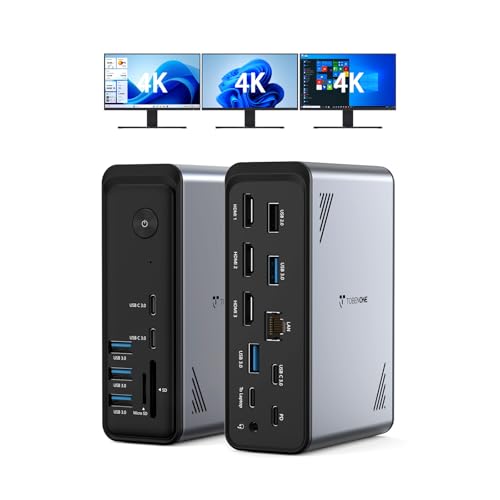
- Three HDMI outputs for triple-display setups
- 18 ports, including nine USB connections
- Up to 100W PD charging, but power supply is separate
Best For: Windows and ChromeOS users building a multi-monitor workstation
Best Compact Value

- Compact 8-in-1 design with Ethernet and card readers
- One 4K display at 60Hz or two at 4K at 30Hz
- Up to 85W pass-through charging; charger not included
Best For: Portable dual-display setups and everyday USB-C laptop expansion
Triple-Display Powerhouse

- Three-display support for Windows and Linux
- 150W total DC power delivery
- 10Gbps USB-C, Ethernet, storage, and audio
Best For: Power users needing multiple monitors and extensive connectivity
Productivity Command Center
Acer 13-in-1 Triple-Display Dock

- Three display outputs for compatible Windows laptops
- 110W adapter with up to 100W laptop power
- Ethernet, card readers, USB, audio, and security slot
Best For: Windows desk setups with three monitors and card-reader needs
Business-Ready Choice
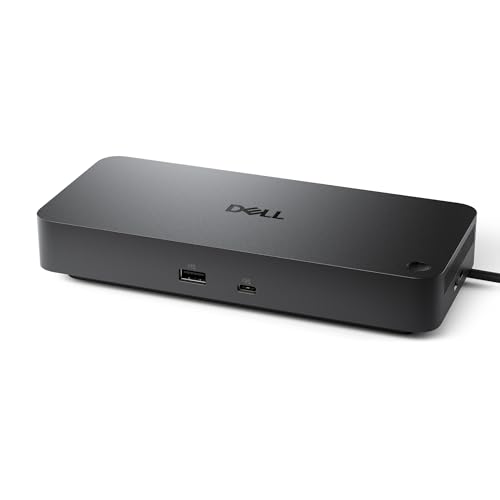
- Up to 100W power delivery for compatible PCs
- Native support for up to four high-resolution displays
- Business-focused manageability and three-year warranty
Best For: Office and IT-managed workspaces with multi-display needs
Best Smart-Powered Dock – 13-in-1 MOKiN LumiNext DD01
The MOKiN LumiNext DD01 is one of the most feature-rich powered docking stations here, combining a built-in power supply, dual HDMI outputs, fast USB connectivity, and a status LCD. It is a practical fit for users who want a tidy desk and clear visibility into connected devices and charging activity.
Best For: Windows users who need dual 4K monitor support, high-speed file transfers, and simultaneous charging for several devices.
Pros:
- Built-in 160W power supply avoids a separate external power brick.
- Supports up to 100W laptop Power Delivery and charging for additional devices.
- Dual HDMI supports 4K at 60Hz, with extended displays on Windows.
- LCD status display and privacy button provide convenient connection monitoring and control.
Cons:
- macOS supports mirrored dual displays rather than two independently extended monitors.
- Requires a full-function USB-C or Thunderbolt port on the host laptop.
Its combination of built-in power, dual-display capability, Gigabit Ethernet, and 10Gbps ports makes this a strong all-in-one workstation dock. The main limitation is macOS display behavior, so Windows users get the clearest benefit from its monitor features.
Best Vertical Powered Dock – Baseus Spacemate 11-in-1
The Baseus Spacemate is a space-saving choice among powered docking stations, using an upright aluminum design with a swiveling magnetic base. It connects displays, peripherals, wired networking, audio, and laptop charging through one host connection, although the required power adapter is sold separately.
Best For: Windows users who want triple-monitor support and a compact vertical dock for a crowded desk.
Pros:
- Drives up to three external monitors on Windows through two HDMI and two DisplayPort outputs.
- One or two displays can run at 4K/60Hz; all three can run at 4K/30Hz.
- Vertical aluminum body saves desk space and includes a built-in host cable.
- Provides 10Gbps USB ports, Gigabit Ethernet, audio, and up to 85W laptop charging.
Cons:
- Power adapter is not included.
- macOS extends to only one external monitor.
- Laptops requiring more than 100W may charge slowly.
The Spacemate stands out for its compact footprint and flexible triple-display output, making it especially useful for Windows desk setups. Budget for a compatible 100W USB-C adapter if you want maximum charging performance with all ports active.
Best Port Variety Powered Dock – LIONWEI 13-in-1 Triple Display Hub
The LIONWEI 13-in-1 dock is a versatile powered docking station for laptops that need a broad mix of display, USB, networking, audio, and charging connections. Its dual HDMI and DisplayPort outputs support up to three displays on compatible Windows systems, while the compact, lightweight design is easy to carry.
Best For: Windows laptop users who need triple-display support, many USB ports, and a 3.5mm audio/mic connection.
Pros:
- Offers dual HDMI, DisplayPort, Gigabit Ethernet, audio, and eight USB ports.
- Windows systems support mirror and extend modes for up to three displays.
- HDMI and DisplayPort outputs support up to 4K at 60Hz with a DP 1.4 source.
- Supports 100W Power Delivery, with up to 87W available to the laptop after dock usage.
Cons:
- macOS can extend only one monitor.
- Requires a compatible full-function USB-C connection for video features.
- The dock uses 13W of the connected power input.
This dock offers strong connectivity for users who value port count and display flexibility over a minimal setup. Its Windows-focused multi-monitor support is the key advantage, while Mac users should expect more limited extended-display capability.
Best Enterprise Powered Dock – Plugable USB-C Triple Display Dock
The Plugable USB-C Triple Display Dock is built for powered workstation setups in mixed Windows, macOS, and ChromeOS environments. It combines 100W USB-C Power Delivery with three HDMI outputs, DisplayLink support, wired networking, USB peripherals, and enterprise-oriented technical support.
Best For: Hybrid teams and professionals who need up to three extended displays across supported Windows, macOS, or ChromeOS laptops.
Pros:
- Supports up to three extended HDMI displays, including DisplayLink-based monitors.
- Provides 100W USB-C Power Delivery for continuous host charging.
- Works with compatible USB-C, USB4, and Thunderbolt systems on Windows, macOS, and ChromeOS.
- Includes Gigabit Ethernet, six USB 3.0 peripheral ports, and audio connectivity.
Cons:
- macOS requires driver installation for the DisplayLink features.
- Not compatible with Linux.
- HDCP is not supported.
For organizations standardizing powered docking stations across different laptop platforms, Plugable’s broad compatibility and DisplayLink-based triple-display support are major advantages. Check operating-system requirements and content-protection needs before deploying it for specialized media workflows.
Best High-Power Pick – Anker Prime 14-in-1 Dual-Monitor Dock
For users who want powered docking stations with substantial charging capacity and fast connectivity, the Anker Prime 14-in-1 Docking Station combines 160W total output with dual HDMI display support. It is designed for compatible Windows, ChromeOS, and USB-C, USB4, or Thunderbolt laptops.
Best For: Windows or ChromeOS users who need high-wattage charging, multiple USB ports, Ethernet and audio connectivity, and a dual-monitor workstation.
Pros:
- 160W total output with up to 100W available through each of three USB-C ports.
- Provides 14-in-1 connectivity, including 10Gbps data ports, Ethernet, audio, and dual HDMI.
- Supports two external displays at up to 2K at 60Hz with a DP 1.4 laptop.
- Includes a 24-month warranty and a USB-C upstream cable.
Cons:
- Does not support Linux.
- On macOS, both external displays show identical content.
- Does not support a 5120×1440 monitor.
This is a strong choice when charging capacity and broad connectivity matter more than compact size. Check your laptop’s DP Alt Mode and Power Delivery support before buying, especially if you use macOS or an ultrawide display.
Best for Triple Displays – TobenONE 18-in-1 Triple-4K Dock
The TobenONE 18-in-1 docking station is built for expansive Windows and ChromeOS workspaces. Among powered docking stations, it stands out for three HDMI outputs, nine USB ports, card readers, Ethernet, and support for triple or dual 4K displays at 60Hz.
Best For: Windows and ChromeOS users who need three external displays, numerous peripheral connections, and up to 100W laptop power delivery.
Pros:
- Offers 18 ports, including three HDMI ports, nine USB/PD/host connections, Ethernet, SD, microSD, and audio.
- Supports triple or dual 4K displays at 60Hz on compatible systems.
- Provides up to 100W PD charging to help keep a laptop powered during the workday.
- Works with many full-featured USB-C, USB4, and Thunderbolt 3 or 4 Windows and ChromeOS laptops.
Cons:
- Does not include a power supply; an additional power source rated above 65W is required for stable operation.
- Designed specifically for Windows and ChromeOS systems rather than macOS.
- Full-featured USB-C or compatible host support is required.
Choose this dock when display expansion is the priority and you are prepared to supply your own charger. Its port selection suits multi-monitor offices, creative workflows, and home workstations with many peripherals.
Best Compact Value – Anker 8-in-1 Dual-HDMI Hub
The Anker 8-in-1 USB-C Hub is a compact option for powered docking stations when you need everyday expansion without a large desktop dock. It includes dual HDMI, USB-A data ports, Ethernet, SD and microSD readers, and up to 85W pass-through charging.
Best For: USB-C laptop users who want a portable dual-display hub for office work, networking, storage cards, and pass-through charging.
Pros:
- Combines eight functions, including dual HDMI, Ethernet, USB-A, SD, microSD, and USB-C PD input.
- Supports one 4K display at 60Hz or two displays at 4K at 30Hz.
- Provides up to 85W pass-through charging with a suitable USB-C PD charger.
- Compact design weighs 3.2 ounces and includes an 18-month warranty.
Cons:
- A 100W PD wall charger and USB-C-to-USB-C cable are required but not included.
- On macOS, both external monitors show identical content.
- Not compatible with Linux.
This hub is a practical fit for travel and smaller desks, particularly if you already own the required charger and cable. Its dual-display mode is useful, though users seeking 4K at 60Hz on two monitors should consider a different solution.
Triple-Display Powerhouse – 13-in-1 Triple-Monitor Dock
This Selore&S-Global dock is a strong option among powered docking stations for Windows or Linux users who need three external displays, high-speed peripherals, and substantial power delivery from one workstation hub. It combines dual HDMI, DisplayPort, 10Gbps USB-C, storage readers, Ethernet, audio, and up to 150W of DC power delivery.
Best For: Windows and Linux users building a three-monitor productivity or gaming setup with demanding charging and connectivity needs.
Pros:
- Supports three monitors through two HDMI ports and one DisplayPort, with Windows/Linux screen extension.
- Offers up to 100W laptop charging plus 30W USB-C output within its 150W power-delivery system.
- Includes dual 10Gbps USB-C ports, USB-A ports, Gigabit Ethernet, SD/microSD readers, and audio.
- Compatible with Thunderbolt 3/4 and USB4 hosts.
Cons:
- macOS supports screen mirroring only rather than an extended multi-monitor desktop.
- 4K at 144Hz is limited to a single monitor; using multiple displays requires lower resolutions or disables other outputs.
Choose this dock when display expansion and flexible power output matter more than a simple, compact setup. Verify your laptop’s video capabilities and operating-system limitations before buying.
Productivity Command Center – Acer 13-in-1 Triple-Display Dock
The Acer 13-in-1 dock is one of the more complete powered docking stations for a Windows workstation, pairing three display outputs with a supplied 110W adapter. It also adds Ethernet, USB ports, simultaneous SD and microSD access, audio, and a security slot in an aluminum body.
Best For: Windows users who want a powered desk setup with three screens, 100W laptop charging, and built-in card readers.
Pros:
- Includes two HDMI ports and DisplayPort 1.4 for triple-display expansion on compatible Windows systems.
- Comes with a 110W power adapter that delivers up to 100W to the laptop.
- Provides USB-C and USB-A connectivity, Gigabit Ethernet, 3.5mm audio, and SD/TF card readers that can read and write simultaneously.
- Aluminum construction is designed to help dissipate heat, and the security slot supports cable-lock use.
Cons:
- macOS supports mirroring only, not an extended desktop across multiple displays.
- Triple 4K at 30Hz requires a compatible Windows laptop or GPU with Display Stream Compression.
This Acer dock is a practical choice for a fixed Windows workstation, especially if you regularly use memory cards and three monitors. Its triple-display performance depends on host-system support, so check the laptop’s USB-C video and DSC capabilities first.
Business-Ready Choice – Dell Pro WD25 Universal Dock
The Dell Pro WD25 is a business-focused option among powered docking stations, delivering up to 100W to compatible Dell and non-Dell PCs while expanding a laptop with display, USB, network, and charging connections. It supports up to four high-resolution displays and includes manageability features aimed at office and IT environments.
Best For: Business users and IT-managed workspaces that need broad PC compatibility, quad-display support, and dependable desk connectivity.
Pros:
- Delivers up to 100W of power to newer mainstream Dell AI PCs and compatible non-Dell PCs.
- Supports up to four high-resolution displays and includes HDMI, DisplayPort, USB, and Ethernet connectivity.
- Offers a flexible ambidextrous USB-C cable that can route to either side and uses a reinforced USB-C connector.
- Includes a three-year limited hardware warranty with Advanced Exchange and supports several modern operating systems.
Cons:
- Display outputs and supported resolutions can vary by the connected computer and configuration.
- Its business-management features may be more than needed for a simple home office setup.
The WD25 makes the most sense when compatibility, manageability, and multi-display expansion are priorities. It is particularly well suited to office deployments, while casual users may prefer a simpler dock with fewer enterprise-oriented features.
How We Picked the Best Powered Docking Stations
We focused on docks that combine meaningful connectivity with external power support, rather than basic unpowered USB-C hubs. The selection covers dual- and triple-display models, including options with HDMI, DisplayPort, USB-A, USB-C, and laptop charging. We also considered stated power delivery, port variety, monitor resolution support, operating-system compatibility, and whether a dock is better suited to office productivity, creative work, or a flexible home setup.
Specifications can vary by laptop, operating system, cable, and host USB-C or Thunderbolt capabilities. A dock’s maximum display count may also depend on DisplayPort Alt Mode, MST support, or software-based display technology, so confirm compatibility before buying.
Quick Comparison
| Best For | What to Look For |
|---|---|
| Dual-monitor office setups | Two independent video outputs, reliable USB connectivity, and at least 65W to 100W charging |
| Triple-monitor productivity | Three compatible display outputs, sufficient bandwidth, and confirmed Windows or macOS support |
| High-port-count desks | Several USB-A and USB-C ports, Ethernet, audio, card readers, and a stable power adapter |
| Travel and flexible workspaces | A smaller enclosure, detachable cable, practical port layout, and moderate power requirements |
Key Buying Factors for Powered Docking Stations
Display Support
Start with the number and type of monitors you plan to use. Check HDMI and DisplayPort versions, maximum resolution and refresh rate, and whether the dock supports independent displays on your laptop. Windows systems often offer broader MST support, while Mac compatibility can be more limited on some docks.
Power Delivery and Included Adapter
Compare the dock’s power-delivery rating with your laptop’s charger requirement. A 100W dock may provide less than 100W to the computer after the dock reserves power for its own operation. High-performance laptops may need a dock with a stronger adapter or their original charger connected separately.
Ports and Bandwidth
Count the ports you actually use, not just the headline total. Fast USB ports are useful for external SSDs, while slower ports are adequate for keyboards, mice, and printers. Ethernet, SD or microSD readers, audio, and a front-facing USB-C port can make a major difference in daily convenience.
Compatibility and Reliability
Verify support for your laptop’s operating system, USB-C features, and required drivers. Look for a well-ventilated design, a secure power connection, and a cable long enough to place the dock where you want it. For business environments, brand support and firmware updates may matter as much as port count.
Who Should Buy Which Powered Docking Stations?
Choose a compact dual-monitor model if you mainly need two screens, charging, and everyday USB accessories. Pick a triple-display dock if expanded screen space is central to your workflow and your laptop explicitly supports the required configuration. A high-port-count option is better for a permanent workstation with storage, networking, peripherals, and multiple displays connected at once.
For business users, prioritize dependable compatibility, power delivery, and support over the largest specification list. MacBook owners should pay particular attention to native display limitations and required software. If you frequently move between locations, choose a lighter dock with the ports you need rather than paying for connections that will remain unused.